how to automate WooCommerce tax settings updates with n8n
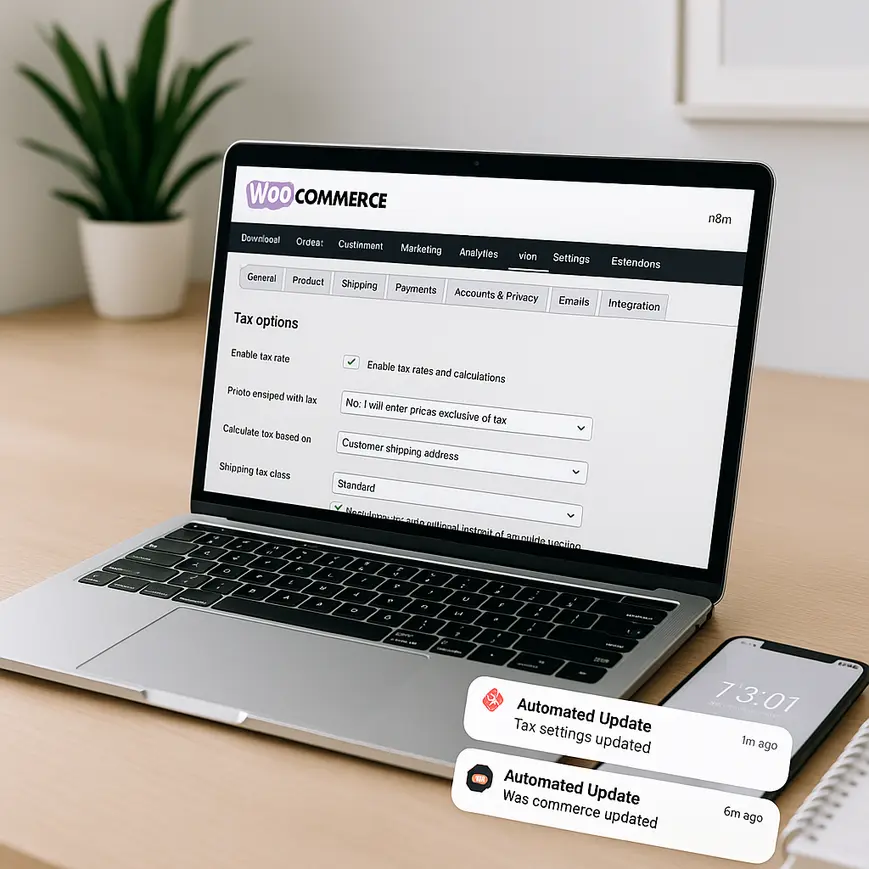
For eCommerce store owners and developers, managing tax settings in WooCommerce can be daunting, especially if tax rates change frequently due to regional legislation or business expansion. Manual updates can result in errors, compliance issues, and lost time—challenges that can be avoided with automation. If you’re looking to simplify the entire process, learning how to automate WooCommerce tax settings updates with n8n can transform your workflow. This practical guide demonstrates not just the concepts behind the automation, but also walks you through building an n8n workflow that keeps your WooCommerce tax settings current, accurate, and hands-free. With n8n’s flexible automation capabilities, it is possible to integrate WooCommerce with tax databases, APIs, or even custom spreadsheets, ensuring your store always applies the correct rates. Whether you run a small shop or manage hundreds of products across multiple regions, automating WooCommerce taxes with n8n can save significant time and reduce human error. Below, we’ll explore every step necessary for setting up robust WooCommerce tax updates automation with n8n, customizable for your specific business needs.
Understanding n8n and WooCommerce Integration
What is n8n and Why Use It?
n8n is an open-source workflow automation tool that allows you to connect various systems, services, and APIs. It’s lauded for its flexibility, low-code interface, and compatibility with dozens of platforms, including WooCommerce. When it comes to automating WooCommerce tax changes, n8n stands out because it empowers non-developers and developers alike to design custom automations without extensive coding. With ready-made nodes for webhooks, HTTP calls, and data transformation, n8n enables users to automate tasks like data synchronization and settings updates in a visual manner.
WooCommerce Tax Settings Overview
WooCommerce enables tax configuration based on location, tax classes, inclusive or exclusive pricing, and more. Traditionally, store owners must enter new tax rules or rates whenever laws change, which makes the process prone to oversight. When paired with n8n, WooCommerce’s REST API can be programmatically accessed to update tax settings, removing the need for manual data input. This integration makes it possible to build intelligent automations that fetch, process, and apply new tax rates easily.
Setting Up Your n8n Environment
Initial Installation and Security
The journey to automate tax settings WooCommerce n8n begins with a proper setup. n8n can be self-hosted or deployed via cloud services. For most eCommerce use cases, a secure environment—such as a virtual private server or Docker container—is recommended. Ensure your n8n instance is protected with authentication, and always use HTTPS to encrypt data transmissions, especially when interacting with sensitive store APIs.
Connecting to WooCommerce with API Credentials
To enable n8n workflow WooCommerce tax settings management, you must create REST API keys in WooCommerce. Navigate to your WordPress dashboard, go to WooCommerce > Settings > Advanced > REST API, and create a new key with read/write permissions. In n8n, use the WooCommerce node and authenticate using these keys, specifying your store URL and API version. This secure connection is fundamental, as it allows n8n to programmatically push updated tax rates whenever triggered.
Designing the n8n Workflow for Automated Tax Updates
Sources of Tax Rate Changes
Determining when and how to trigger WooCommerce automate tax changes n8n is crucial. There are several sources for new tax rates, such as public tax rate APIs (EU VAT rates, US sales tax data), regional government databases, or even Google Sheets managed by your team. Identify your preferred data source as the starting node in n8n—using HTTP Request nodes for APIs, or the Google Sheets node for spreadsheet access.
Data Processing and Transformation
After retrieving the latest tax rates, use n8n’s built-in functions and Transform nodes to clean and format the data according to WooCommerce’s tax schema. This may involve mapping country codes, regions, tax rates, and class names. n8n excels at handling this complexity, allowing you to script checks for duplicate rates or outdated entries, ensuring only accurate updates flow into WooCommerce.
Pushing Updates to WooCommerce
The next critical step is utilizing the WooCommerce node or an HTTP Request node in n8n to send formatted tax data to the WooCommerce tax settings endpoint. With the mapped data, you can perform bulk updates or create new tax rules automatically. Error handling is essential here—configure n8n to log failed operations or notify your admin in case of API errors, guaranteeing visibility into every update attempt.
Scheduling and Monitoring Tax Automations
Scheduling Periodic Tax Updates
WooCommerce tax updates automation with n8n can run on schedules that fit your business. Use n8n’s built-in Cron node to run the automation weekly, monthly, or in response to detected changes in your data sources. For regions with frequent tax updates, daily checks may be required. By scheduling these workflows, your WooCommerce tax settings will always reflect the most current legal obligations—eliminating the risk of manual mistakes.
Monitoring, Logging, and Notifications
Reliable workflow monitoring is fundamental to automating WooCommerce taxes with n8n. Incorporate Send Email, Slack, or webhook nodes to notify stakeholders of successful updates, failures, or unusual tax rate changes. Logging every executed job builds a valuable audit trail, making it easier to track historical changes or troubleshoot when something goes wrong. Setting up proper monitoring ensures that automation enhances accuracy, not just speed.
Customizing Advanced Tax Automation Scenarios
Dynamic Rules and Conditional Logic
Some stores require more than straightforward tax rate imports. With n8n’s conditional nodes, you can tailor WooCommerce automate tax changes n8n workflows to act only when necessary. For example, apply new rates only above certain thresholds, or only to specific product categories. Store-specific logic—like handling luxury taxes or regional exemptions—can be coded visually, making your tax automation truly robust.
Integrating with Additional Services
Automating WooCommerce tax updates does not have to stop at the store level. n8n can update tax rates across multiple WooCommerce instances for multi-store operations, or simultaneously update financial records in bookkeeping platforms like Xero or QuickBooks. Connecting these systems can create a seamless tax compliance workflow across your entire business ecosystem, reducing administrative burdens further.
Best Practices for Reliable WooCommerce Tax Automations
Testing and Quality Assurance
Before deploying in a production environment, thoroughly test all n8n automate WooCommerce tax settings workflows. Use WooCommerce staging environments to simulate updates and check for edge cases, such as invalid data formats or missing tax zones. Automated test runs in n8n help ensure that all scenarios are covered, and that unexpected changes do not break your store’s checkout process.
Ongoing Maintenance and Compliance
After your n8n workflow WooCommerce tax settings automation is live, keep it updated. Tax regulations, APIs, and even WooCommerce endpoints can evolve, so regularly review and update your automation scripts. Schedule periodic reviews of the workflow configuration, including credentials and access controls, to maintain data security and compliance with privacy laws around customer tax data.
Summary
Automating WooCommerce taxes with n8n represents a leap forward in eCommerce operations. By leveraging n8n’s versatile workflow automation, store owners can ensure their WooCommerce tax settings remain current and compliant without tedious manual effort. Integrating real-time data sources, scheduling updates, monitoring workflow execution, and customizing business logic minimizes errors while maintaining agility as regulations shift. With the strategies outlined above, anyone can deploy a reliable n8n workflow for WooCommerce tax updates automation, ensuring faster response to market and legal changes, improved accuracy, and significant cost savings over time. As tax complexity grows, automation transforms what was once a pain point into a competitive advantage for WooCommerce merchants regardless of size or geography.
FAQ
How do I connect WooCommerce to n8n for tax automation?
Create WooCommerce REST API keys with read/write access and add them to an n8n WooCommerce node. This allows secure, automated updates to your store’s tax settings via n8n workflows.
Can I automatically update tax rates from a Google Sheet with n8n?
Yes, n8n’s Google Sheets node can retrieve up-to-date tax rates, transform the data, and push changes to WooCommerce using the WooCommerce API, enabling seamless spreadsheet-driven tax automation.
What do I do if tax rate formats change in my source data?
Use n8n’s transform nodes or JavaScript functions to adjust and reformat tax data before sending it to WooCommerce, ensuring your store only receives valid and compatible tax settings.
Is it safe to update WooCommerce tax settings automatically?
With proper testing, secure API credentials, and workflow monitoring in n8n, automated tax updates are safe. Always use staging environments and restrict API access only to essential workflows for security.
Can I handle destination-based vs origin-based taxes in the automation?
Absolutely. n8n workflows can incorporate conditional logic to update tax rates based on destination or origin rules, ensuring compliance with various regional tax laws as needed by your WooCommerce store setup.