how to automate WooCommerce refund process using n8n
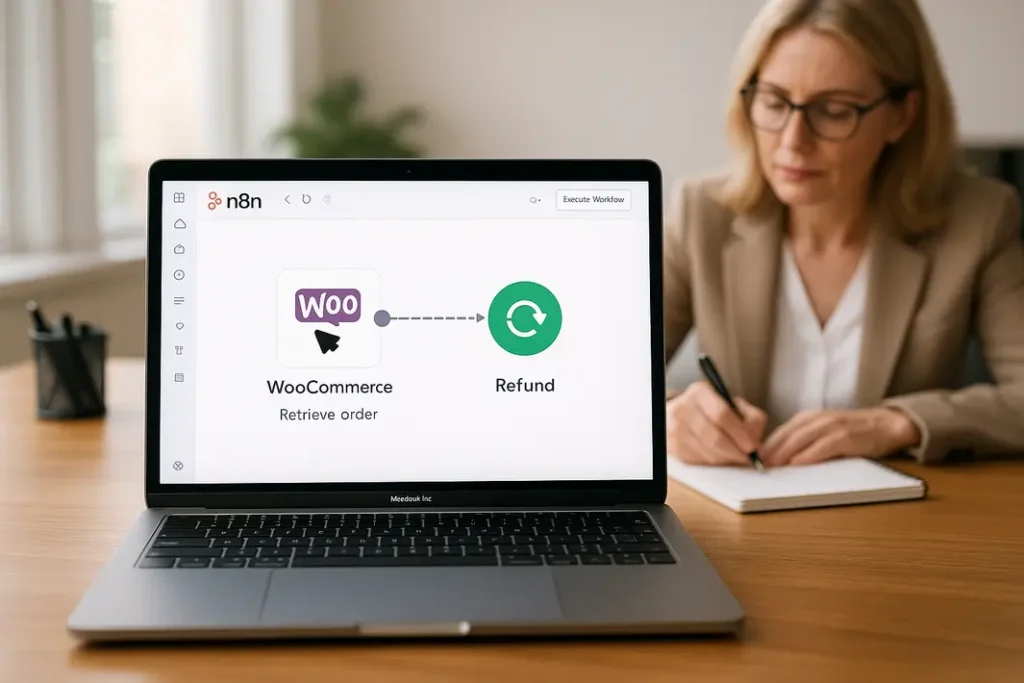
Efficient e-commerce operations increasingly rely on automation, especially when it comes to providing excellent customer service. One of the key interactions between online stores and customers is the refund process. Traditionally, processing refunds in WooCommerce required manual effort, back-and-forth communication, and could sometimes lead to delays. However, with modern workflow automation platforms like n8n, store owners can now streamline and fully automate the WooCommerce refund process. In this guide, you’ll learn how to set up a robust automated workflow using n8n, ensuring refunds are processed swiftly with minimal manual intervention. This not only speeds up service and leads to higher customer satisfaction, but also allows business owners to focus on other critical tasks. Whether you’re looking to save time, reduce errors, or provide a seamless refund experience to your customers, automating WooCommerce refunds with n8n offers significant benefits. Let’s explore the reasons for automation, required tools, stepwise workflow setup, best practices, and common troubleshooting steps for n8n WooCommerce refund automation.
Why Automate Your WooCommerce Refund Process?
The Challenge of Manual Refunds
Manually handling refunds in WooCommerce can be tedious, time-consuming, and error-prone. Every refund generally involves receiving a request, verifying order details, logging into your WooCommerce backend, initiating the refund, and optionally updating accounting systems or notifying other teams. This can lead to delays, inconsistencies, and unhappy customers.
Benefits of Automated Refunds
By automating the WooCommerce refund process with n8n, store owners unlock several advantages:
- Faster Turnaround: Customers receive their refunds quicker, improving overall satisfaction.
- Reduced Manual Effort: Staff saves time as repetitive refund tasks are eliminated.
- Consistency: Every refund follows the same workflow, reducing errors and compliance risks.
- Scalability: Handle higher volumes without requiring more resources.
Ultimately, using n8n for WooCommerce refund automation empowers businesses to respond faster and scale operations efficiently.
Understanding the Necessary Tools and Prerequisites
What is n8n and Why Use it?
n8n is an open-source workflow automation platform that allows users to create visual, event-driven integrations among hundreds of applications and APIs. Its low-code interface means you can set up complex automations, such as WooCommerce refunds, with minimal development knowledge. n8n excels at connecting WooCommerce with other tools, enabling automatic reactions based on specific triggers.
Setting Up WooCommerce API
To connect n8n and WooCommerce, you’ll need to enable the WooCommerce REST API and generate consumer keys. In your WordPress dashboard, go to WooCommerce settings > Advanced > REST API, create a new key, and assign the correct permissions. Store these credentials securely, as n8n will use them to interact with your store.
System Requirements
- A running WooCommerce store (WordPress installed)
- Administrator access to WooCommerce settings
- n8n instance (local, cloud, or Docker)
- Basic understanding of APIs
- Optional: Integration accounts, such as Gmail or Slack, for notifications
Step-by-Step Guide: n8n WooCommerce Refund Automation Workflow
1. Define Your Refund Trigger
Start by determining when n8n should begin the refund automation process. Common triggers include a change in WooCommerce order status (for example, “Refund Requested”), a completed refund request form, or a support ticket update. In n8n, add a “Webhook” or “WooCommerce Trigger” node listening for your chosen event.
2. Fetch and Validate Order Data
Once the trigger occurs, use the “HTTP Request” or “WooCommerce” node in n8n to fetch detailed order information. At this stage, validate the order’s refund eligibility: check dates, order totals, payment status, or other business logic to prevent unintended refunds.
3. Initiate the Refund
If the order is valid for refund, use n8n’s WooCommerce node or custom HTTP call to initiate the refund via the WooCommerce API. Specify the refund amount, provide reason codes if required, and optionally add internal notes. This step automates what would typically take several manual actions.
4. Notify Customers and Internal Teams
Once the refund is processed, add nodes to notify customers—this could be via email (Email or Gmail node), SMS, or internal team notifications (Slack, Microsoft Teams). Not only does this keep everyone informed, but it further streamlines customer communication.
5. Log the Refund for Reporting
To complete your n8n automate WooCommerce refund workflow, ensure every refund is logged in a separate system like Google Sheets, Airtable, or your internal CRM. This makes auditing simple and gives you a historical view of refund actions taken.
Best Practices for Using n8n for WooCommerce Refund Automation
Building Resilient Workflows
While setting up a n8n refund automation workflow for WooCommerce, focus on error handling and workflow resilience. Incorporate checks to handle failed API calls, unexpected data, or connection issues. Use n8n’s “IF” and “Error Trigger” nodes to catch and react to errors gracefully. For example, send alerts to a support team if an automatic refund attempt fails so issues can be resolved promptly.
Security and Access Control
Ensure n8n only has access to the data and features required for the automation. Protect API credentials and use dedicated accounts for automation tasks. Enable logging and review audit trails regularly for unusual activity.
- Tip: Schedule regular updates and maintenance for both n8n and WooCommerce plugins for ongoing security.
Testing and Versioning
Test all new n8n refund automation examples WooCommerce in a staging environment first. Validate that the correct refunds are triggered and there are no unintentional side effects. Keep documented versions of your workflow, enabling easy rollback or updates if business processes change.
Troubleshooting Common Issues in WooCommerce Refunds with n8n
Debugging Workflow Steps
If a refund isn’t processed as expected, start by reviewing n8n’s execution logs. n8n provides a comprehensive log of every step taken, including triggers, API responses, errors, and data passed between nodes. Check that the trigger is firing and that each integration step is returning the expected result.
API and Permission Problems
One frequent issue when you set up WooCommerce refunds n8n is API authentication errors. Ensure that WooCommerce REST API credentials are correct and have adequate permissions. If you update your WooCommerce security settings, you may need to refresh or regenerate API keys for the integration to continue working.
Handling Edge Cases
Sometimes an order may not meet usual refund criteria—such as special offers, returned physical goods, or payment gateway exceptions. It’s best to build conditional checks into your workflow for these edge cases, such as requesting manual review for high-value refunds or suspicious activity. This ensures automation complements, rather than overrides, critical business processes.
Real-World Automation: n8n Refund Automation Examples WooCommerce
Example: Refund Triggered by Support Ticket
Suppose your store uses a helpdesk system where customers can submit refund requests. With n8n, you can connect the helpdesk to WooCommerce: when a ticket is tagged “Refund Approved,” n8n can fetch the order, validate the request, initiate the refund, notify the customer, and log the process automatically. This enables your support team to focus on resolving customer concerns while ensuring prompt refunds.
Example: Refund Log and Analytics Integration
Another n8n WooCommerce refund automation use case is setting up an integration to log every refund to a Google Sheet or Airtable base. This enables your finance or analytics teams to pull up-to-date reports on refund trends and identify business improvements without additional data entry.
Scaling and Customization
Every WooCommerce store has unique workflows. n8n’s flexibility allows you to add custom steps, such as inventory adjustments, manager approvals for large-value refunds, or integrating with external financial platforms. You can continually update your workflow as your business grows.
Summary
Automating the WooCommerce refund process using n8n provides measurable benefits for both store owners and customers. Instead of spending hours each week processing refunds by hand, you can build an n8n automate WooCommerce refund workflow that triggers immediately when a refund is initiated or approved, checks order data, processes the payment, and keeps everyone informed. Not only does this lead to faster refunds and better customer experiences, but it also reduces the risk of mistakes and allows teams to focus on strategic tasks. With straightforward visual workflow building, robust integration support, and a growing community, n8n is an excellent choice for WooCommerce refund automation. By understanding the prerequisites, setting up best-in-class automations, and proactively troubleshooting, you can ensure your refund process is smooth, reliable, and future-proof.
FAQ
How do I connect WooCommerce to n8n for automated refunds?
To connect WooCommerce to n8n, generate WooCommerce REST API keys and set up the connection in n8n’s WooCommerce node. Ensure correct permissions and validate connectivity before configuring refund automation workflows.
Can n8n handle partial refunds in WooCommerce?
Yes, with n8n, you can specify the refund amount using workflow logic and order data. The WooCommerce API supports partial refunds, and you can automate this by setting the refund value dynamically in your workflow.
What types of WooCommerce refund workflows can n8n automate?
n8n can automate refunds triggered by order status changes, customer support systems, returned merchandise notifications, or custom webhooks. The workflow can be customized to your business needs and integrate with other tools for notifications and reporting.
Is it safe to automate WooCommerce refunds with n8n?
Yes, as long as you follow security best practices. Use dedicated API accounts, restrict permissions, and test workflows in a controlled environment before enabling them store-wide. Proper logging and monitoring are also critical for safety.
How can I troubleshoot errors in my n8n refund automation workflow?
Start by checking n8n’s execution logs for workflow errors. Ensure your API credentials are correct, endpoints are reachable, and each workflow node is properly configured. Handle exceptions and alert your team for failed transactions to maintain reliability.