how to automate WooCommerce product pricing with n8n step by step
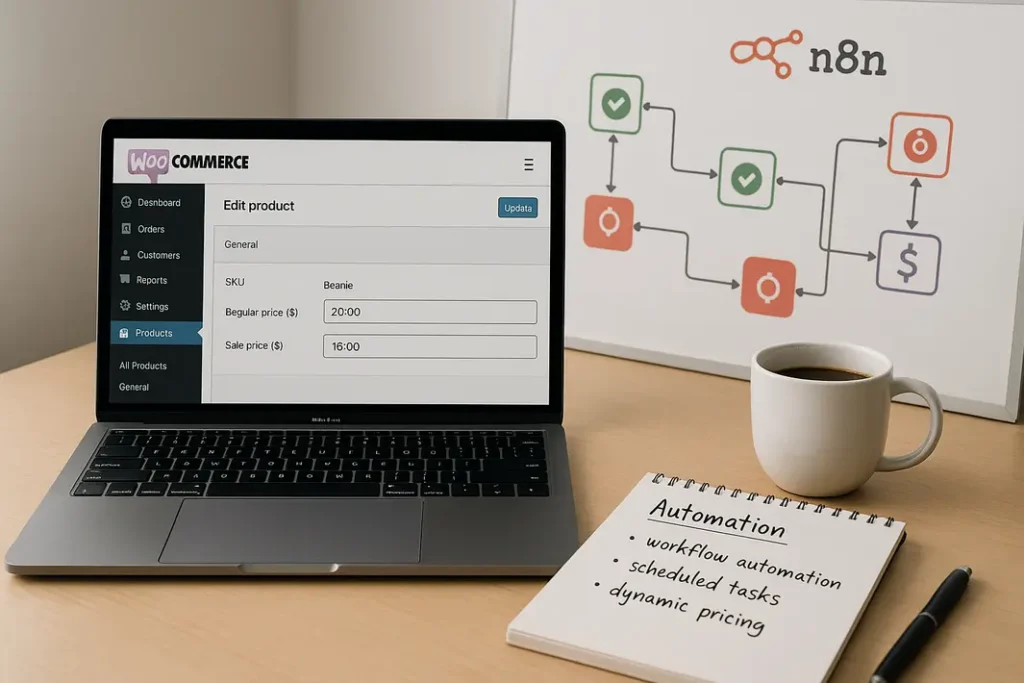
Automating pricing for WooCommerce products can dramatically improve efficiency for eCommerce store owners, especially those managing a large inventory or frequently changing prices due to supply costs, competitor adjustments, or inventory levels. n8n, the open-source workflow automation tool, provides a powerful solution for dynamic price management without the overhead of custom plugins or manual updates. In this guide, you’ll learn how to automate WooCommerce product pricing with n8n step by step, leveraging both WooCommerce and n8n capabilities for a flexible, scalable automation system.
Understanding the Basics: Why Automate WooCommerce Pricing?
Benefits of Pricing Automation
Businesses often need to adjust product prices quickly to stay competitive, respond to market trends, or execute promotional campaigns. Manual updates are not only time-consuming but also prone to errors and inconsistencies. Automating this process ensures price accuracy across your entire catalog and enables instant reactions to pricing triggers such as stock changes, external API data, or scheduled campaigns. With n8n WooCommerce product pricing automation, you also eliminate repetitive tasks and create new opportunities for dynamic pricing strategies.
How n8n Integrates With WooCommerce
n8n can interact with WooCommerce through API endpoints, allowing it to fetch, update, or modify product prices based on predefined logic. This integration gives you granular control over how and when price changes are made, enabling workflows that can incorporate conditionals, custom logic, and data from third-party sources to automate WooCommerce pricing using n8n.
Prerequisites: What You Need Before You Start
n8n and WooCommerce Setup Essentials
Before implementing WooCommerce pricing workflow automation with n8n, ensure you have the following:
- A working WooCommerce store with API access enabled. You can enable API in WooCommerce by navigating to WooCommerce > Settings > Advanced > REST API.
- API keys (consumer key and secret) with write permissions for products.
- An n8n instance running on your server, cloud, or locally. You can deploy n8n using Docker, npm, or managed services.
- Basic familiarity with n8n’s workflow builder and how to use HTTP request nodes.
Best Practice Security Tips
Always keep your API keys secure and restrict access to only necessary endpoints. For live stores, consider using n8n’s credentials encryption features and never expose sensitive data in workflow logs or public environments.
Step-By-Step Guide: Setting Up n8n for WooCommerce Price Automation
1. Establish Secure WooCommerce API Connection in n8n
To begin, add new credentials in n8n for your WooCommerce store. Navigate to the credentials manager and set up HTTP Basic Auth, entering your WooCommerce API keys. This connection allows n8n to make authorized requests to your store’s REST API.
2. Build the Trigger for Price Updates
Every workflow starts with a trigger. For WooCommerce automatic price updates with n8n, you might want to trigger based on schedule, webhook (e.g., product inventory changes), or integrations with data sources (such as competitors’ pricing feeds). For scheduled updates, use the Cron node to run the workflow hourly, daily, or on custom schedules as needed.
3. Fetch Products and Pricing Data
Use the HTTP Request node to retrieve a list of WooCommerce products. Set the method to GET and provide the API endpoint /wp-json/wc/v3/products. You can add filters or parameters to target specific product categories or IDs for selective price adjustments.
4. Apply Pricing Logic in n8n
Leverage n8n’s built-in Function or Set nodes to define your business rules. For example, you might increase prices by 10% if a product’s stock falls below a threshold, or apply markdowns for end-of-season sales. This is where the flexibility of WooCommerce pricing workflow automation n8n really shines—you can incorporate formulas, conditions, or data from other sources.
5. Send Updated Prices Back to WooCommerce
For each product requiring a price update, configure another HTTP Request node with the PATCH method, pointing to /wp-json/wc/v3/products/{product_id}. Map the new price data from your earlier step. Iterate using n8n’s Loop or SplitInBatches nodes to ensure all products are updated efficiently.
Advanced Use Cases: Taking Automation Further
Dynamic Pricing with External Data Feeds
One of the most powerful features of n8n is its ability to work with external APIs or data sources for truly dynamic pricing. For instance, you can fetch competitor pricing using a data scraping integration, apply complex pricing formulas, and automatically adjust WooCommerce prices to remain competitive. Integrate currency conversion APIs, Google Sheets, or supplier stock data, and let n8n automated price change WooCommerce workflows do the heavy lifting.
Multi-Condition Pricing Triggers
You can stack conditions, such as adjusting prices only on weekends or if inventory is running low and conversion rate has dropped. This flexibility allows for tailored promotional strategies implemented entirely through automation.
Monitoring and Testing Your n8n WooCommerce Pricing Workflow
Debugging and Logging
After setting up how to use n8n for WooCommerce price adjustments, it is crucial to test your workflow. n8n allows you to review execution history and logs, identifying any issues with data mapping or API requests. Use built-in error handling nodes to notify you if a price update fails, ensuring reliability.
Safe Rollout in Production Environments
Consider running the workflow first on a staging environment or a handful of test products before deploying live. Regularly review pricing changes and refine business rules as needed—automation should always complement your overall pricing strategy, not replace leadership oversight entirely.
Security, Efficiency, and Maintenance of Automated Pricing Workflows
Maintaining Security Best Practices
Automating sensitive processes like pricing requires ongoing attention to security. Regularly rotate WooCommerce API keys, keep n8n updated to the latest version, and restrict workflow modification permissions. Consider adding alerting via email or Slack for any critical pricing changes done via the workflow.
Ensuring Workflow Efficiency
If you have a large product catalog, segment workflows to update only what’s needed, reduce API call frequency, and use batching to avoid hitting rate limits. With careful workflow design, n8n WooCommerce product pricing automation can be both efficient and robust, even at scale.
Summary
Automating WooCommerce product pricing using n8n gives you granular, dynamic control over how your store responds to changing business environments. By integrating scheduled triggers, custom business logic, and seamless API communication, n8n enables you to implement complex pricing strategies without coding custom plugins. Monitoring, security, and regular workflow audits ensure the process stays reliable and aligns with your business goals. This n8n tutorial for automating WooCommerce prices provides the foundation for ongoing digital transformation of your eCommerce operations.
FAQ
How do I start automating WooCommerce prices using n8n?
Begin by setting up an n8n instance and enabling WooCommerce REST API access. Link your WooCommerce credentials, then build a workflow that fetches products, applies pricing rules, and updates products through the API.
Can n8n connect to external data sources for price adjustments?
Yes, n8n supports extensive integration with external data sources such as CSVs, Google Sheets, or competitor APIs. You can pull in external pricing data and use it directly in your WooCommerce price automation workflows.
Is it safe to automate all WooCommerce price changes?
Automation is safe if built securely—always test workflows in a staging environment first and use permissioned API keys. Monitor changes with workflow logs and set up error alerting for best results.
What triggers can I use for automated price changes in WooCommerce?
You can trigger workflows on schedule (using Cron), webhook events (like stock changes), or when new data arrives from external sources. Choose a trigger that aligns with your pricing strategy.
How can I avoid accidental pricing errors with n8n WooCommerce automation?
Always use robust conditional logic, thorough testing, and limit updates to specific products or categories where possible. Regular audits and error notifications help catch and resolve any issues before they affect your live store.