how to set up automated workflows in WordPress using n8n
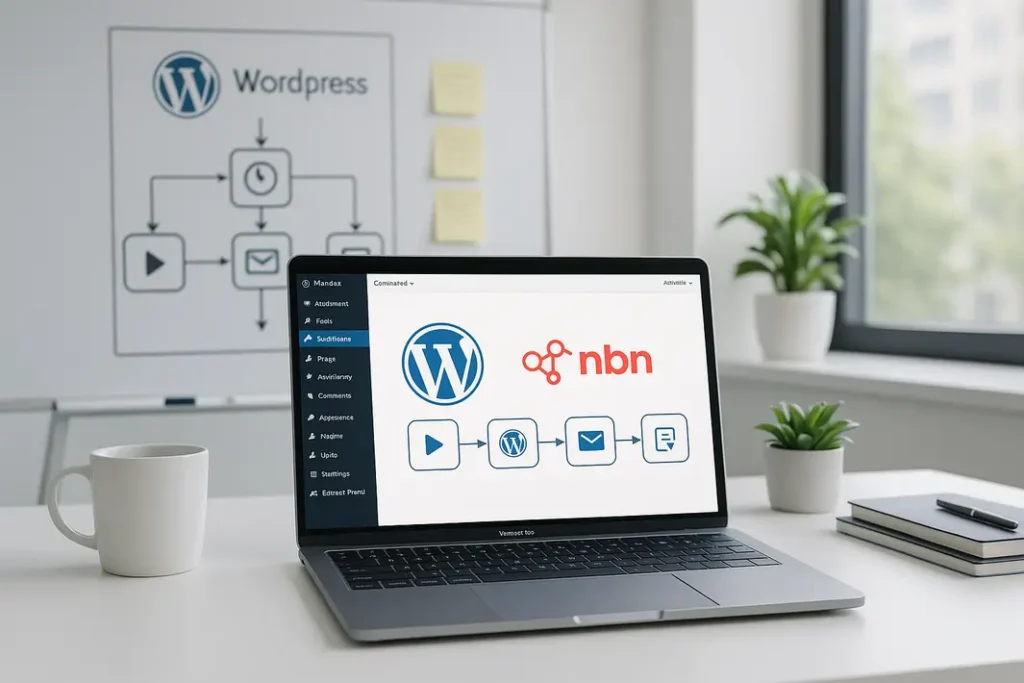
Managing a WordPress site involves repetitive processes, from publishing new posts to managing user registrations and responding to incoming form submissions. As your site grows, these routine tasks can become overwhelming, impacting productivity and increasing the likelihood of human error. Workflow automation offers a solution by streamlining recurring tasks and allowing site managers to focus on more strategic responsibilities. Among the tools available for automation, n8n stands out for its flexibility and ability to connect WordPress with countless applications and services. If you want to unleash the full potential of workflow automation in WordPress with n8n, this tutorial will walk you through a practical approach to implementing tailored, automated systems for your site.
Whether you want to automate content syndication, handle user notifications, sync with your marketing stack, or just cut down on manual admin duties, n8n can empower you. In this comprehensive guide, you’ll learn how to set up automated workflows in WordPress using n8n, including basic setup, popular automation scenarios, and best practices. By the end, you’ll be equipped to design customized n8n automation for WordPress sites, scaling your operations and improving efficiency without sacrificing control. Let’s explore how to leverage n8n as a powerful workflow automation platform for your WordPress site.
Understanding n8n and WordPress Integration
What Is n8n?
n8n is an open-source workflow automation tool designed to connect and automate workflows across a broad range of applications, including WordPress. With n8n, you can build logic-driven workflows (called “nodes”) that automate repetitive processes, transfer data, or react to triggers from different systems. In contrast to other automation tools, n8n provides self-hosting, extensive integration support, and an intuitive visual editor. Its flexibility makes it an excellent choice for web professionals aiming to automate complex or custom procedures within their sites.
Why Automate WordPress With n8n?
WordPress’s built-in functionality, while sufficient for many sites, falls short when you require workflows spanning multiple apps or advanced automation. For example, you may want to send data from contact forms to Slack, create backups on cloud storage, or trigger events based on user actions without manually intervening. Automating WordPress processes with n8n can help you handle such use cases seamlessly. By linking WordPress and other apps, you can synchronize content, streamline notifications, implement advanced monitoring, and maintain cleaner, more responsive processes. This “no-code/low-code” approach also reduces the demand for direct custom plugin development, making automation accessible for non-developers.
Preparing Your Environment for n8n WordPress Workflow Setup
Setting Up n8n
Before building automation, you’ll need a running instance of n8n. This can be accomplished in several ways: via Docker, as a direct Node.js installation, on virtual private servers, or through cloud providers supporting n8n. Docker is popular for its ease of deployment and isolation. After installation, you’ll access an intuitive web interface where workflows are designed visually. For security and reliability, consider hosting n8n on a server with HTTPS, protection from unauthorized access, and necessary backups.
Connecting WordPress to n8n
n8n uses the WordPress REST API to interact with your site. The API enables nodes in n8n to retrieve, create, update, or delete WordPress data remotely. To establish this connection, ensure the REST API is enabled on your site—this is standard in most modern WordPress installations. Additionally, n8n requires credentials to authenticate requests. You can use Application Passwords (introduced in WordPress 5.6) for secure API access, or, for older versions, basic authentication plugins. Always use strong passwords and HTTPS to maintain security. After configuring these details, set up the WordPress node in n8n with your site’s URL and access credentials.
Building Your First Automated Workflow: A Practical Example
Basic Workflow Scenario
To illustrate how to use n8n for automating WordPress tasks, consider this scenario: you want every new blog post published on your WordPress site to be automatically shared to a Twitter account. While there are plugins that do something similar, n8n allows you to expand these workflows to include additional platforms or custom logic later.
Step-by-Step Setup
- Start a New Workflow in n8n: Log into your n8n dashboard and create a new workflow.
- Add a Trigger Node: For this scenario, use the WordPress node as a trigger. Configure it to watch for a new post published event through the REST API.
- Add an Action Node: Connect the trigger node to a Twitter node (or any other social media integration n8n supports). Map the new post’s title and URL to the content fields in your social media message.
- Test the Workflow: Publish a test post in WordPress and check if it appears on your Twitter timeline automatically.
Customizing and Expanding the Workflow
This basic “new post to social media” flow establishes the foundation. From here, you can add more steps, such as scheduling posts, transforming content with filter nodes, or sending multiple notifications. The visual editor allows you to drag, drop, and connect as many actions as you want, making the n8n WordPress workflow setup both robust and adaptable to changing requirements.
Popular Use Cases: Automating WordPress Processes With n8n
Content Publishing and Distribution
One of the most impactful applications of n8n automation for WordPress sites is content distribution. Upon publishing a post, your workflow can update social channels, push to RSS feeds, or even cross-post to Medium. You can also schedule recurring content updates or curate newsletters by integrating with email services, all powered by the same core automation logic created in n8n.
Automating User Management
Another popular use case involves automating tasks triggered by user actions: for instance, sending a customized onboarding email when a new user registers, assigning them to a specific WordPress role based on sign-up details, or even alerting your admin team via Slack. n8n allows you to build these user-centric flows for a cohesive onboarding and engagement strategy without writing custom PHP code.
Best Practices for Workflow Automation in WordPress With n8n
Security Considerations
The power of automating WordPress processes with n8n comes with the responsibility to secure your data and platform. Always use HTTPS, limit API access to trusted IPs if possible, and avoid exposing admin credentials unnecessarily. Review permissions granted to n8n and regularly update both n8n and WordPress to their latest versions. If your workflows process sensitive user information, ensure compliance with relevant data privacy guidelines.
Testing and Monitoring Workflows
Never activate a new automation directly in your production environment without thorough testing. Use n8n’s test modes and logs to verify workflow outputs and error handling. Where feasible, set up notifications for failed executions or add logging steps directly in the workflow so any malfunction is quickly identified and resolved. Regularly monitor your automated workflows as part of your routine site maintenance.
Designing Scalable Workflows
As your needs evolve, you may create more sophisticated automations spanning multiple apps or large datasets. Plan for scalability by modularizing workflows—break larger processes into smaller, reusable workflows and sub-workflows where possible. Manage credentials centrally, minimize unnecessary API requests, and document your node logic for future reference or team collaboration.
Troubleshooting Common Issues When Using n8n With WordPress
Authentication and API Errors
Some of the most frequent issues when connecting n8n with WordPress arise from incorrect API credentials or permissions. Double-check your application password or authentication plugin settings, confirm that the user role in WordPress has the necessary capabilities (like publishing or editing posts), and ensure your WordPress REST API is enabled and accessible from your n8n server. Debug by inspecting error messages within n8n’s execution logs.
Workflow Execution Problems
If a workflow runs but doesn’t produce the expected results, there could be issues with how data is mapped between nodes or how filters/conditions are applied. Open the failed execution in n8n’s history to review the inputs and outputs between each node step, adjusting the workflow design as needed. Make ample use of n8n’s built-in debugging tools to isolate and remedy problems efficiently.
Summary
Automating your WordPress site workflows with n8n can be transformative, enabling you to reduce manual tasks, increase site reliability, and expand functionality far beyond the core WordPress ecosystem. The process begins by setting up your n8n server and connecting it to your WordPress installation using the REST API and secure credentials. Once configured, the visual workflow editor simplifies building both basic and advanced automations, from auto-sharing new content to managing user registrations or distributing posts across multiple platforms. By following best practices for testing, security, and designing scalable workflows, you’ll position your WordPress site for efficiency, consistent growth, and more engaging user experiences. Ultimately, n8n offers a flexible, powerful foundation for WordPress automation tailored to your site’s unique demands.
FAQ
How do I connect my WordPress site to n8n for workflow automation?
To connect n8n with your WordPress site, set up a WordPress node in n8n using the REST API endpoint of your site. Authenticate using either Application Passwords (WordPress 5.6+) or an authentication plugin if needed, and enter your credentials in the n8n node settings.
What tasks can I automate in WordPress using n8n?
You can automate content publishing, notifications, user onboarding, updates to external platforms, data backups, form submissions, and much more. n8n enables integration with a wide range of external services beyond WordPress as well, enhancing your workflow possibilities.
Is it possible to run n8n on shared hosting for WordPress automation?
Most shared hosting providers do not support running custom Node.js applications like n8n. For best results, use a dedicated server, VPS, Docker environment, or cloud provider that allows running persistent background processes.
How do I ensure the security of automated workflows between n8n and WordPress?
Always use HTTPS for all connections, store credentials securely, restrict API access only to essential endpoints, and use strong, unique application passwords. Regularly update both WordPress and n8n for the latest security patches.
Can n8n workflows be customized without coding knowledge?
Yes, n8n’s visual workflow editor allows most automations to be set up without any coding. For more advanced logic, n8n also supports JavaScript function nodes, but many common workflows only require configuration of nodes and settings through the interface.