how to automate WordPress daily backups with n8n
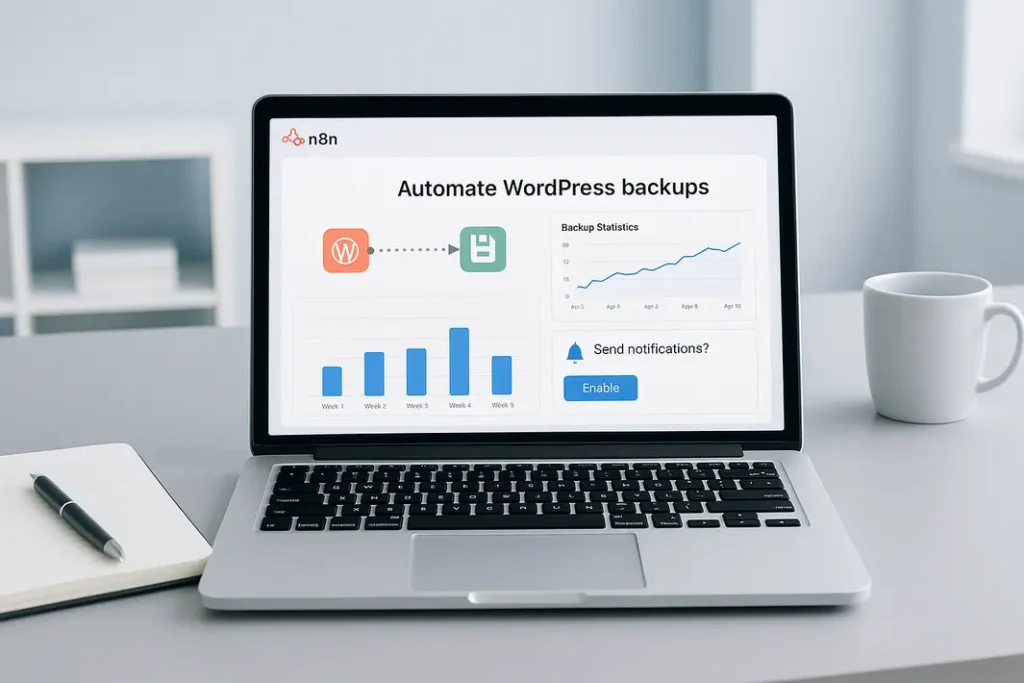
Backing up your WordPress website regularly is essential for protecting valuable content, themes, plugins, and your entire business operation. Manual backups, however, are time-consuming and easy to neglect, making them unreliable. With the rise of automation platforms, it is now possible to automate WordPress backups with n8n, an open-source, low-code workflow automation tool. This article offers a step-by-step approach to setting up a robust WordPress backup workflow using n8n, ensuring your site is backed up every day without fail or manual input.
We will explore how to configure n8n to back up your WordPress files and database, store the backups securely, and set reliable schedules. Understanding this process is crucial for any webmaster, developer, or business owner wishing to mitigate risks associated with data loss, website hacks, or accidental updates. By the end of this n8n tutorial for WordPress backups, you’ll have an automatic, hands-off, resilient daily backup system safeguarding your online presence. This approach ensures that your backups are always up to date and retrievable when the unexpected strikes.
Understanding n8n and Its Backup Automation Potential
What is n8n?
n8n is an open-source workflow automation platform enabling users to connect various services, APIs, and systems with minimal programming expertise. Its intuitive interface allows anyone to create powerful automation chains, ranging from simple tasks like sending emails to complex multi-step workflows. With its support for hundreds of software integrations, including webhooks and custom scripts, n8n empowers users to automate tasks previously considered too complex or time-intensive to handle manually.
Why Use n8n for WordPress Backup Workflows?
n8n WordPress backup automation is particularly powerful because it offers flexibility, transparency, and control not found in many traditional WordPress backup plugins. It allows you to customize every step of your backup process: setting the schedule, choosing where backups are stored (like Google Drive, Dropbox, S3, or FTP), and monitoring for failures. Unlike single-purpose tools, n8n can also trigger notifications or even clone your website backups to multiple locations, enhancing data reliability and recovery prospects in case of disaster.
Preparing for Automatic WordPress Backups with n8n
Prerequisites and Initial Setup
Before building your backup workflow, you need a few key pieces in place. First, ensure you have access to your WordPress site’s filesystem (via FTP/SFTP, SSH, or your hosting panel) and database (commonly through phpMyAdmin or command line). Next, make sure you have an operational instance of n8n—this can be self-hosted or cloud-hosted. Access credentials and sufficient permissions for automated file and database operations are necessary, as is deciding on your backup storage destination (local, remote server, or cloud storage).
Security Considerations
During setup, pay careful attention to security. Use strong, unique passwords for your FTP/SFTP and database accounts. Configure your firewall and security plugins to whitelist your n8n server if needed. When saving backup data, encrypt sensitive files and don’t store them in your public web directory. Automating backups is powerful, but only when performed securely.
Creating a WordPress Backup Workflow Using n8n
Workflow Structure and Components
To set up WordPress automatic backup n8n workflows, you’ll need to outline what the backup procedure should do. At minimum, your workflow will include:
- A schedule trigger to define when (daily) the backup occurs
- A step to export the WordPress MySQL database
- A step to copy WordPress core files, themes, plugins, and uploads directory
- A step to compress and archive these files
- A step to upload or move backups to chosen storage
- Optional: Send notification upon success or failure
Implementing Your Backup Workflow in n8n
Begin by using n8n’s Schedule node—here, set the workflow for daily execution at your preferred time. For the database, connect an SSH node or Execute Command node to run a mysqldump command. For file backups, use an FTP, SFTP, or SSH node for downloading WordPress directories. Next, a Move Binary Data or Archive node can compress these resources into a single archive. A Cloud Storage node (Google Drive, Dropbox, S3) or an FTP/SFTP node uploads the backup. Finally, nodes like Email or Slack can notify you when backups complete or fail.
Advanced Configuration for Reliable WordPress Backups
Versioning, Retention, and Failure Handling
For truly robust n8n automate daily backup for WordPress, advanced features such as backup versioning and retention policies are vital. Create date-stamped filenames for archives to avoid overwriting previous backups. Insert logic nodes to automatically delete backups older than a defined threshold, keeping storage manageable and secure.
Error Handling and Notifications
Design the workflow with error handling in mind. Add IF or SWITCH nodes to identify command failures, and automatic alert steps that notify you if the backup did not complete as planned. Consider redundancy—save each backup to multiple locations when possible.
Testing and Maintaining Your n8n WordPress Backup Automation
Dry Runs and Restoration Tests
After setting up your workflow, conduct test runs to verify every component. Ensure the database dump, files archive, and upload steps complete without error. Practice restoring from a backup to confirm the integrity of your archives—a backup is only as good as your ability to restore from it.
Workflow Maintenance and Updates
Regularly revisit your backup workflow. As your WordPress installation grows or your plugins and themes change, directories and files may shift. Review storage quotas and update access credentials securely as needed. Periodic maintenance ensures the automation remains effective and secure throughout your site’s lifecycle.
Integrating Additional Features into Your WordPress Backup Workflow Using n8n
Workflow Customizations and Extensions
As you become more comfortable with automatic WordPress backup n8n tutorial techniques, you can enhance your workflow with new integrations. Consider adding malware scans before your backup, or pushing logs to a monitoring dashboard. If you operate multiple WordPress sites, n8n can loop through multiple credentials to back up several installations with a single workflow.
Automated Cleanup and Reporting
Enhance efficiency by automating cleanup of temporary files and providing summary backup reports via email or dashboard widgets. Use n8n’s flexibility for real-time backup status insights, further reducing manual monitoring overhead. Sophisticated n8n WordPress backup automation can even interface with incident management tools to speed up disaster response.
Summary
Backups should never be a guessing game. With the right setup, n8n enables consistent, reliable, and fully automated daily backups for any WordPress website. This guide demonstrated how to setup WordPress automatic backup n8n workflows—from the basics of n8n and pre-setup planning, through stepwise workflow building, to advanced backup management. Automating your backup workflow using n8n doesn’t just save time—it dramatically increases your website’s resilience and your peace of mind. By continually refining and testing your process, and adapting to evolving threats and needs, you ensure that your content, work, and investments are protected from loss, errors, or cyberattacks every single day.
FAQ
How can I use n8n to back up my WordPress site daily without plugins?
You can use n8n’s schedule, SSH, and archive nodes to connect to your server, export the MySQL database, copy WordPress files, and compress them into an archive, then upload the archive to cloud storage—all automatically without installing additional plugins.
Is it safe to automate WordPress backups with n8n?
Yes, automating backups with n8n is safe if configured correctly with strong credentials and encrypted storage. Always use secure protocols (like SFTP and SSH) and regularly review your workflow’s permissions and security settings to prevent unauthorized access.
Which cloud services can n8n store WordPress backups to?
n8n can upload backups to services like Google Drive, Dropbox, Amazon S3, Azure Blob Storage, or any storage that supports SFTP/FTP. Custom API nodes expand the options even further, letting you store backups on nearly any modern cloud platform.
How do I recover my WordPress site from an n8n backup?
To recover, download your backup archive, extract your WordPress files back to the web server, and restore the database using a tool like phpMyAdmin or the command line. Make sure your wp-config.php is set for the correct database and credentials before going live.
Does n8n support incremental WordPress backups?
Out of the box, n8n workflows typically perform full backups. With custom scripting and workflow logic, you can build incremental backup systems that copy only changed files or database entries, but this requires more advanced configuration and oversight.