how to automate WooCommerce email notifications using no-code tools
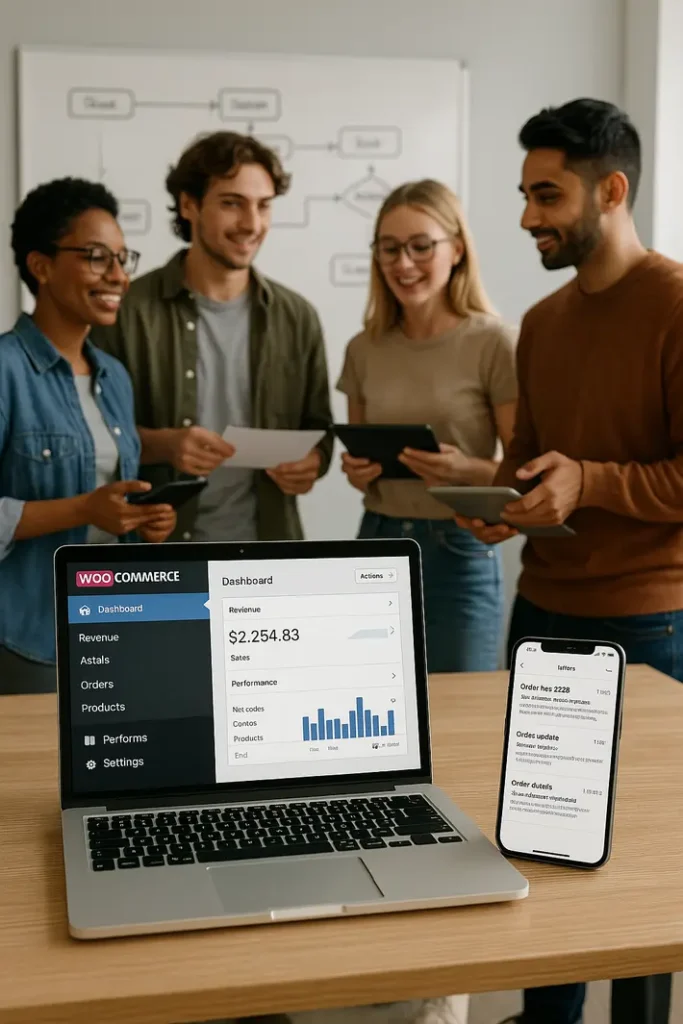
Automating email notifications in a WooCommerce store can transform how you manage customer communication and streamline your store’s operations. Traditionally, creating custom automated emails in WooCommerce required knowledge of PHP, hooks, or other coding skills, often necessitating a developer’s help. For store owners and managers without a technical background, this posed a significant barrier to taking full control of their store’s interactions.
Fortunately, no-code tools have democratized workflow automation, enabling even beginners to set up and manage sophisticated email notification systems without writing a single line of code. With the rise of user-friendly platforms, setting up tailored email triggers and actions is now within everyone’s reach. Whether you’re seeking to reduce repetitive tasks, improve customer experience, or just make your day-to-day business smoother, learning to automate WooCommerce email notifications no-code can provide lasting value.
This comprehensive no-code WooCommerce email automation tutorial will introduce you to practical methods for implementing automated emails in your store. We’ll guide you step-by-step through choosing the right tools, connecting workflows, and customizing your emails—making what was once a technical challenge now an accessible and powerful capability. Read on to explore a simple WooCommerce email automation without coding approach, and discover which no-code tools for WooCommerce email notifications will work best for your unique business needs.
Understanding WooCommerce Email Notifications
What Are WooCommerce Email Triggers?
WooCommerce by default sends a variety of transactional emails—such as order confirmations, shipment notifications, and customer invoices. These notifications are ‘triggered’ by events like new orders, changes in order status, or refunds. Understanding what each event represents lays the foundation for crafting an effective WooCommerce automated email setup guide.
Email triggers in WooCommerce can be divided into customer-facing and admin-facing categories. Customer notifications keep buyers informed about their order status, fostering trust and transparency. Admin notifications alert store managers about new purchases, low stock, or failed orders, ensuring smooth operations. While these defaults are useful, most stores need tailored notifications and sequences to truly delight customers and optimize workflows.
Why Customize WooCommerce Emails?
Using automation, store owners can move beyond the basic notifications provided out-of-the-box. Customizing triggers allows for sending post-purchase recommendations, reminding customers to review products, alerting staff to special order notes, or thanking repeat buyers in creative ways. For non-developers, figuring out how to use no-code for WooCommerce emails means gaining flexibility and delivering exceptional customer experiences without the steep learning curve of custom PHP development.
Choosing No-Code Tools for WooCommerce Email Automation
Main Types of No-Code Solutions
No-code workflow tools connect WooCommerce to hundreds of apps and services without technical setup. The most popular categories include standalone WordPress plugins, cloud workflow automation platforms, and email marketing systems with built-in automation.
Popular options such as AutomateWoo, Uncanny Automator, and WP Fusion provide native integration with WooCommerce and intuitive visual interfaces. Alternatively, workflow automators like Zapier or Make (formerly Integromat) let you connect WooCommerce to external email services like Gmail, Mailchimp, or SendGrid. Each platform varies in its implementation, complexity, and costs, but all aim to offer beginner WooCommerce email automation steps without requiring any programming.
Evaluating the Right Tool for Your Store
When selecting a tool, consider your goals—are you just sending order updates, or do you want actions based on richer data, like abandoned carts or birthdays? Also evaluate pricing, support, available integrations, and scalability. Look for features such as easy workflow design, trigger-action logic, template customization, and analytics, which can save you time while meeting your business needs.
Setting Up Simple WooCommerce Email Automation Without Coding
Installing and Connecting Your No-Code Tool
The foundational step in a WooCommerce automated email setup guide is installing your chosen plugin or linking your store to a cloud service. For WordPress-based tools, install the plugin through your admin dashboard, activate it, and follow the onboarding to connect it with WooCommerce.
For cloud platforms like Zapier, use their official WooCommerce integration and grant necessary API permissions. Many plugins and services offer guided workflows to make this process smooth for first-time users, ensuring no part of the setup requires custom coding knowledge.
Configuring Email Triggers and Actions
Once connected, define which WooCommerce events (triggers) should result in outgoing emails (actions). For example, set up a trigger for ‘New Order’ or ‘Order Completed’ and select your preferred action: send email, add to mailing list, or notify your team via Slack.
Customize email content using placeholders for dynamic data such as customer name, order details, or product recommendations. Most no-code tools provide an easy drag-and-drop or template editor, empowering you to craft professional-looking, personalized emails with minimal effort.
Advanced No-Code WooCommerce Email Automation Scenarios
Multi-Step Workflows and Advanced Filters
After mastering basic notification flows, explore more sophisticated automation. Some of the best no-code tools for WooCommerce email notifications allow you to create multi-step workflows. For instance, after an order is marked ‘completed,’ you can wait several days, check if the customer hasn’t left a review, and then automatically send a review reminder.
Advanced filters can make your workflows smarter. For example, you may want to email only VIP customers or offer discounts to first-time buyers. By setting conditions on order value, product categories, or user roles, you can ensure your automation is highly targeted and relevant. These complex workflows were once only possible with custom development, but now represent beginner WooCommerce email automation steps achievable with visual builders.
Integrating with External Services
No-code tools also unlock integrations beyond WooCommerce. Connect your store to your favorite email providers, CRMs, or helpdesks, syncing customer data automatically. This means you could send shipping notifications via SMS, add new buyers to a nurture sequence in your marketing platform, or alert your support team to special requests—without touching PHP or hiring a developer.
Testing, Monitoring, and Optimizing Your Automated Email Workflows
Testing Your Automation Flows
Before going live, always test your email automations. Use the test features built into most no-code tools to simulate order events, ensuring that emails are triggered correctly and content appears as expected. Checking both sender information and recipient experience helps catch errors early and minimizes risk of sending the wrong message to customers.
Tracking Performance and Making Improvements
Ongoing optimization is key for email automation success. Monitor metrics like open rates, click rates, and customer feedback using built-in analytics or your integrated email provider’s dashboard. Minor changes in timing, subject lines, or targeting criteria can deliver significant improvements. Regularly review which automations are most impactful and refine those that are underperforming to continually enhance your customer communication strategy.
Summary
No-code solutions have made it simpler than ever to automate WooCommerce email notifications and elevate your store’s communication without any programming skills. By understanding email triggers and leveraging user-friendly platforms, even newcomers can set up, customize, and refine advanced workflows that keep customers informed and engaged. Strategic automation with visual workflow builders not only saves you time, but also boosts customer satisfaction, unlocks new marketing opportunities, and ensures you remain responsive as your WooCommerce shop scales. With beginner WooCommerce email automation steps and a willingness to experiment, you can powerfully streamline your store’s email processes—empowering you to focus more on growth and less on repetitive, manual tasks.
FAQ
How do I set up WooCommerce email automation without any coding skills?
You can use dedicated no-code plugins like AutomateWoo or Uncanny Automator, or connect WooCommerce to automation platforms like Zapier. These tools provide user-friendly visual interfaces that let you choose triggers and actions, configure email content, and go live—all without technical expertise.
Are no-code WooCommerce email automation solutions reliable?
Yes, reputable no-code tools designed for WooCommerce are built for stability and security. As long as your plugins are updated and compatible with your version of WooCommerce, these solutions reliably handle daily email notifications and can be trusted for customer communication.
Can I send automated emails for specific WooCommerce products or categories?
Absolutely. Most no-code email automation tools offer filters to trigger actions based on product details, categories, or order values. This allows highly targeted communications, like special follow-up emails for customers who purchase certain products or promotional messages for particular collections.
Is it possible to integrate WooCommerce email automation with third-party email providers?
Yes. By using cloud workflow tools like Zapier or Make, or plugins with integrations for providers like Mailchimp, SendGrid, or ActiveCampaign, you can automate the flow of contacts and trigger professional marketing emails from your preferred services, all in a no-code environment.
What are the common mistakes to avoid in no-code WooCommerce email automation?
Common pitfalls include failing to test automations thoroughly, overlooking recipient segmentation, and sending emails too frequently. To ensure effective customer communication, always review automation logic, monitor analytics, and aim for relevant, timely, and valuable messages in your workflows.