how to automate WooCommerce customer order confirmation emails with n8n
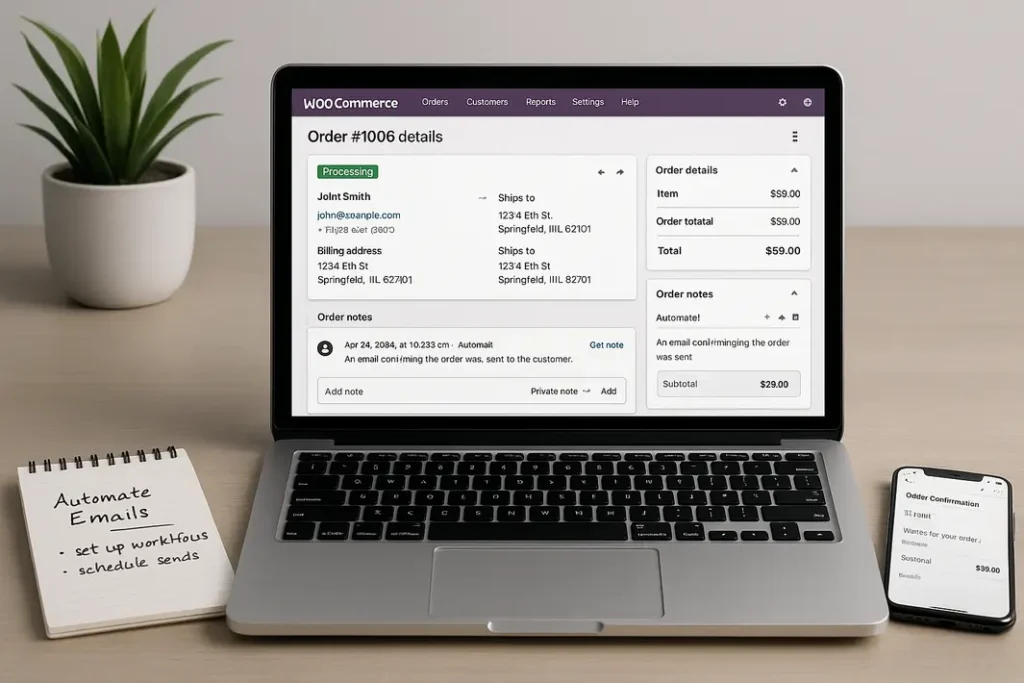
Automating WooCommerce customer order confirmation emails is essential for delivering a seamless e-commerce experience and establishing trust with your buyers. While WooCommerce provides default email notifications, many store owners look for greater flexibility and customization – especially when managing communications at scale. Enter n8n: an open-source workflow automation tool that empowers you to design powerful, no-code automations connecting WooCommerce with countless other services and custom email solutions. In this guide, you’ll learn a comprehensive, step-by-step approach to n8n WooCommerce order confirmation email automation. By following the process outlined below, you’ll ensure every shopper receives prompt, tailored email updates that enhance your brand and customer satisfaction.
Whether you want to personalize order details, integrate with CRM or marketing tools, or simply gain tighter control over the messaging and timing, n8n is a robust choice. You don’t need advanced development skills—just a reliable WooCommerce store, a running instance of n8n, and a willingness to learn the basics of workflow design. By the end of this tutorial, you’ll understand not just how to use n8n for WooCommerce email automation, but also best practices for scaling and maintaining these processes as your business grows.
Understanding the Basics of n8n and WooCommerce Integration
What is n8n and How Does it Work?
n8n (pronounced “n-eight-n”) is a powerful workflow automation platform—similar to Zapier, but open-source and highly customizable. You create workflows, called “nodes”, which can interact with APIs, databases, and applications like WooCommerce. Nodes can trigger actions (like sending emails) in response to events (such as a new order in WooCommerce). This flexibility makes it easy to design complex automations without writing extensive code.
Why Automate WooCommerce Order Emails with n8n?
While WooCommerce offers built-in order email notifications, customization is limited and not always tailored to unique workflows. By automating WooCommerce customer order emails using n8n, you gain these advantages:
- Deeper personalization using customer and order data.
- Integration with multiple email providers or CRM systems.
- Ability to add conditional logic or multiple triggers.
- Easier tracking and logging of sent emails.
Understanding the unique strengths of both platforms is the first step towards a highly efficient n8n order confirmation email setup for WooCommerce.
Preparing Your WooCommerce Store and n8n Environment
Prerequisites for Successful Automation
Before building your automated workflow, ensure that your WooCommerce store and n8n environment are set up and accessible. Here are the essentials you’ll need:
- A live WooCommerce store with administrator access.
- REST API credentials (Consumer Key/Secret) generated from WooCommerce for secure integration.
- An installed and running instance of n8n (locally, on a server, or via a cloud provider).
- A dedicated email service (such as SMTP, SendGrid, Mailgun, etc.) connected to n8n.
Setting up API credentials in WooCommerce is straightforward: navigate to WooCommerce > Settings > Advanced > REST API and create a new key with Read/Write permissions. Keep this information secure as it will be used by n8n to communicate with your store.
Securing Integrations and Data
Both WooCommerce and n8n should be secured with strong passwords and HTTPS. Ensure environment variables such as API keys and email provider credentials are kept private. Regularly update your software to benefit from security patches and new features that make automating WooCommerce order email notifications with n8n even easier and safer.
Designing the n8n Workflow for WooCommerce Order Emails
Triggering Your Workflow with WooCommerce Events
The core of n8n WooCommerce order confirmation email automation is an event-driven workflow. Begin by creating a new workflow in n8n. Add a Webhook node or a dedicated WooCommerce Trigger node (if available) as the starting point. This node listens for events from WooCommerce, such as a new order being created. You’ll typically configure WooCommerce to send webhooks to the n8n webhook URL for events like order.created or order.updated.
Fetching Order Details
After triggering the workflow, you need detailed order information to personalize your emails. Add a WooCommerce node configured with your API credentials to fetch the order data using the order ID received from the trigger. Pull customer name, email, items, shipping address, and any custom metadata necessary for a comprehensive confirmation message.
Branching Logic and Data Preparation
Use n8n’s built-in nodes like IF, Set, or Function to manipulate and organize this data. For example, you might filter orders based on payment status, different products, or choose varying email templates depending on order value. Data mapping at this stage ensures your email content is dynamic and relevant to each customer.
Composing and Sending the Order Confirmation Email
Choosing and Integrating an Email Provider
n8n supports multiple email delivery methods, giving you choices between direct SMTP, transactional email services (SendGrid, Mailgun), or even Gmail. Add the relevant Email node to your workflow, and configure it with your provider settings. Test the connection within n8n to confirm that emails can be sent reliably.
Creating Dynamic and Personalized Email Templates
With the order data fetched, you can create HTML or plain-text emails using placeholders—for instance, {{customer.firstName}}, {{order.id}}, or a dynamically generated summary of purchased items. n8n’s template capabilities allow you to craft visually appealing emails or embed essential links such as order tracking and support. Preview and test your template for formatting and responsive design to ensure it looks great on all devices.
Sending the Confirmation and Logging Results
Once your email template is complete, the workflow will send the email to the customer’s address captured from WooCommerce. Optionally, add a Spreadsheet or Database node to log sent emails, status (success/failure), and timestamps for future reporting. This is an important step for maintaining robust WooCommerce order email notifications with n8n and troubleshooting delivery issues.
Testing, Monitoring, and Scaling Your Automation
Testing the Workflow End-to-End
Before activating your workflow, perform end-to-end tests. Place a test order in WooCommerce and observe the workflow in n8n: the trigger, data fetch, email composition, and delivery. Check spam folders and review email formatting. If issues arise, use n8n’s logs and visual node status indicators to debug and refine each step.
Monitoring Performance and Handling Errors
Set up error handling within n8n by adding ‘Catch’ or ‘Error Trigger’ nodes. Notify a system administrator or log errors for further review. Regularly monitor workflow metrics such as number of emails sent, delivery rates, and bounce rates. These practices ensure reliable automating of WooCommerce customer order emails using n8n as order volumes increase.
Scaling for High Volume Stores
For stores with large order volumes, consider batch processing, increasing concurrency settings in n8n, or integrating queuing systems to avoid bottlenecks. Monitor email provider limits and configure throttling if needed. n8n’s modular approach also lets you branch out further—for example, sending SMS confirmations or syncing order data with marketing tools parallel to the email workflow.
Best Practices for Long-Term Maintenance and Improvement
Regular Updates and Security
Keep your WooCommerce, n8n instance, and third-party plugins updated to minimize security risks. Review access privileges for both systems regularly to prevent unauthorized actions. Use environment variables in n8n to avoid exposing sensitive credentials.
Reviewing Analytics and Customer Feedback
Periodically analyze sent email logs, open rates, and customer responses. Tweak subject lines or templates to improve engagement. Encourage customers to provide feedback on their email experience and use insights to further personalize communications, keeping your email automation relevant and effective over time.
Summary
Successfully automating WooCommerce customer order confirmation emails with n8n provides greater control, improves customer experience, and reduces manual workloads. From setting up your WooCommerce and n8n integration to designing dynamic, personalized emails, this guide has covered a structured approach to creating reliable automations tailored to your store’s specific needs. Ongoing testing, monitoring, and improvements are essential for maintaining high-quality automated communications as your store grows. Embracing automation with n8n offers the flexibility to enhance not just email notifications, but your entire e-commerce workflow—ensuring customers stay informed and engaged at every step post-purchase.
FAQ
How can I set up customer email automation in WooCommerce using n8n?
You need to connect WooCommerce and n8n via API or webhooks, create a workflow that listens for new orders, fetches order details, and sends personalized emails through your preferred email provider configured in n8n. Testing and monitoring are also important steps for reliability.
Do I need coding skills for n8n WooCommerce order confirmation email automation?
No advanced coding is required. n8n uses a visual workflow designer with configurable nodes, making it accessible even if you’re not a developer. Basic understanding of APIs and data mapping helps but is not strictly necessary.
What email providers can I use with n8n for WooCommerce order emails?
n8n supports a wide range of options including SMTP, SendGrid, Mailgun, Gmail, and many others. Choose the one that aligns with your needs and configure the appropriate node within your n8n workflow.
Can I send different order confirmation emails based on products or customer groups?
Yes, you can use conditional logic within n8n’s workflow to tailor email content based on products purchased, order value, or specific customer attributes. This enables deep personalization for WooCommerce order email notifications with n8n.
Is automating WooCommerce customer order emails using n8n secure?
As long as your WooCommerce API keys, email credentials, and n8n instance are secured and regularly updated, this setup can be as secure as any other professional integration. Proper access management and regular reviews of workflows further enhance security.