how to automate WordPress blog post scheduling with n8n
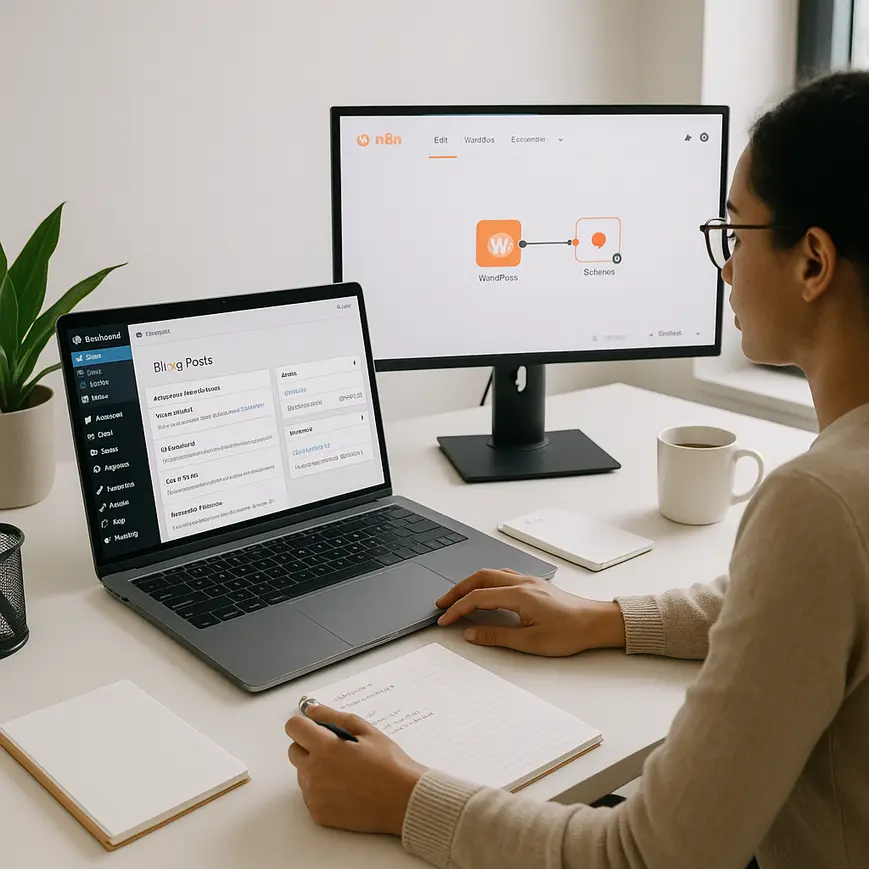
Automating WordPress blog post scheduling can transform how you manage content, especially if you operate a multi-author blog, run a publication calendar, or want to streamline editorial workflows. Manual scheduling can be tedious and error-prone. By integrating n8n—a powerful open-source workflow automation tool—with your WordPress site, you can schedule, create, and publish posts while maintaining flexibility and control. This tutorial guides WordPress site owners through setting up n8n workflows, from installation to advanced automations, focusing on practical scenarios such as recurring content, editorial queues, and scheduled publications. Readers will learn the fundamentals of n8n and how it can bridge gaps in WordPress’s own scheduling features, enabling sophisticated automation without ongoing manual intervention. Whether you’re looking for simple time-based publishing or intricate content pipelines, understanding WordPress automation with n8n is vital for keeping your content strategy efficient and consistent.
Understanding the Basics of n8n Workflow Automation
Before diving into how to automate WordPress blog posts with n8n, it’s crucial to grasp the fundamentals of n8n and workflow automation. n8n is an open-source automation tool that allows users to create complex integrations across different platforms without heavy coding. With nodes representing actions, triggers, or data bits, n8n lets you build flows that react to events, process data, and execute multi-step logic.
What Makes n8n Ideal for WordPress Automation
n8n’s flexibility comes from its visual interface and broad integration support. For WordPress blog scheduling, n8n acts as a bridge between WordPress and various data sources—Google Sheets, RSS feeds, email, or even custom CMS backends. The tool’s support for time-based triggers means it can manage when posts should be drafted, updated, or published without any human intervention. This is particularly powerful for editorial calendars, recurring post schedules, or any scenario that benefits from consistency and automation.
Preparing Your WordPress Site and n8n for Integration
To successfully use n8n to schedule WordPress posts, some preliminary setup is required. First, you need admin access to your WordPress install and an operational n8n instance. n8n can be run locally using Docker, on a managed service, or deployed to a VPS according to your comfort level and requirements.
Setting Up WordPress API Access
The primary bridge between n8n and WordPress is the REST API. To allow n8n to interact with your blog, you’ll need an application password or an API key with the right permissions. In WordPress, go to Users > Profile, and under Application Passwords, generate a new entry for n8n. Save this password securely, as it will be used in your workflow setup.
Launching n8n and Installing Required Nodes
After your n8n instance is running, make sure the HTTP Request node is available, since this is used to communicate with WordPress. Some managed n8n instances come with extra WordPress-specific nodes, but the HTTP Request node is flexible enough for almost all scheduling and publishing scenarios discussed here.
Building Your First n8n WordPress Scheduling Workflow
With prep work completed, it’s time to create your initial automation. This section demonstrates a basic n8n WordPress blog scheduling example where blog posts are drafted and scheduled based on a Google Sheet or an internal editorial calendar. The goal is to automate publishing to fit your planned content strategy.
Creating the Scheduled Trigger
Drag a “Cron” node into your n8n workflow. This node will control when the workflow runs—be it daily, weekly, or on specific dates. Set your desired schedule that aligns with your editorial calendar. For instance, to publish on Mondays at 9 AM, configure the Cron node accordingly.
Connecting the Content Source
Add a “Google Sheets” node or use a “Webhook” to pull forthcoming blog post data. This data might include title, content, categories, tags, and images. n8n supports multiple triggers, so you can even build automations based on new files, emails, or external CMSs.
Posting to WordPress via API
After mapping your dataset, connect an HTTP Request node. Set the method to POST and point it to your WordPress site’s /wp-json/wp/v2/posts endpoint. Provide authentication using the application password. Within the JSON body, include post title, content, status (“future” for scheduling), categories, and publish date. When triggered, this workflow will send content directly into your WordPress backend for scheduling and avoid manual entry.
Advanced WordPress n8n Scheduling Automations
Once you master basic publishing, n8n’s power is apparent when you build more advanced scheduling automations for WordPress. Editorial teams may wish to automate reminders, approvals, social sharing, or even multi-channel publishing alongside blog automation.
Conditional Logic and Approvals
Add “IF” nodes to check if posts meet certain quality or readiness standards before pushing live. Integrate with Slack or email for editorial approvals, inserting a manual handoff if required. This reduces human bottlenecks while retaining essential checkpoints before publication.
Multi-Platform Distribution
Connect additional nodes for Twitter, Facebook, or newsletter platforms. Using n8n’s branching, publish the same content across multiple channels after WordPress schedules it. This ensures broader reach and unified timing for your content strategy.
Real-World n8n Workflow Examples for WordPress Posts
To showcase possible automations, let’s look at several n8n workflow examples for scheduling WordPress blog posts beyond just Cron triggers.
Automated Blog Re-Runs
Use n8n to re-share evergreen posts. Set a workflow to pick historical popular blog entries from your WordPress API, update the scheduled date, and push them as “future” posts. Automating blog re-runs keeps your editorial calendar filled.
Drafts to Schedules Based on External Triggers
Create workflows that change WordPress post status from “draft” to “future” when a row in a Google Sheet is updated, an email is received, or an Asana task is completed. This bridges editorial management platforms with automated publishing.
Troubleshooting and Best Practices for WordPress Automation with n8n
Even robust workflows can encounter hiccups. Ensuring the long-term reliability of your n8n and WordPress blog scheduling automations requires proactive troubleshooting and adherence to best practices.
Authentication and API Permissions
Incorrect authentication is the most common issue. Always use the correct REST API credentials and update them regularly. Limiting access to necessary endpoints and keeping API passwords secure is crucial for protecting your site.
Managing Scheduling Conflicts and Overwrites
When multiple workflows may create or update posts simultaneously, use conditional logic and checks on post slugs or IDs to avoid duplication. Implement error handling steps in n8n nodes to capture and address API failures. Maintain clean logs within n8n so that failures or skipped posts are visible and auditable.
Summary
Setting up automated WordPress post scheduling with n8n offers significant benefits for site owners, editorial teams, and solo bloggers who want to save time and ensure content consistency. By leveraging n8n’s visual workflow editor, you can build simple or complex automations that not only schedule posts but also include content ingestion, approval flows, and multi-platform publishing. Integrating with the WordPress REST API is straightforward, and the flexibility of n8n means you can connect virtually any data source or trigger. Following these steps and best practices leads to fewer publishing errors, unlocked productivity, and a more agile content pipeline, all without sacrificing editorial oversight. As automation becomes more accessible, harnessing n8n for WordPress blog scheduling will be an essential tactic for anyone involved in digital publishing.
FAQ
How do I securely authenticate n8n with my WordPress site?
You should use WordPress application passwords or the official REST API keys with limited access. Store passwords securely in your n8n instance and regularly audit permissions to avoid security risks.
Can I schedule recurring posts automatically with n8n and WordPress?
Yes, using the Cron node in n8n, you can set up recurring schedules to post new or recycled content automatically. These can be configured for any interval—daily, weekly, or custom dates—without manual intervention.
What happens if my workflow tries to schedule a post for a date/time already occupied?
By default, WordPress will create a new post but scheduling conflicts can arise if slugs or IDs overlap. Integrate conditional checks in your n8n logic to avoid duplications or overwrite issues by verifying existing schedules before posting.
Is it possible to automate post approval before publishing in this workflow?
Yes, you can insert an approval phase using n8n’s IF nodes or integrate with notifications to Slack, email, or project management apps. This allows for editorial oversight where posts require review before they are published.
What are typical use cases for n8n and WordPress blog automation?
Common use cases include automated publishing from editorial calendars, converting Google Sheet rows into scheduled posts, re-sharing evergreen content, and synchronizing posts with other content platforms or newsletters—all reducing repetitive manual tasks.