how to automate WooCommerce product restocking notifications with n8n
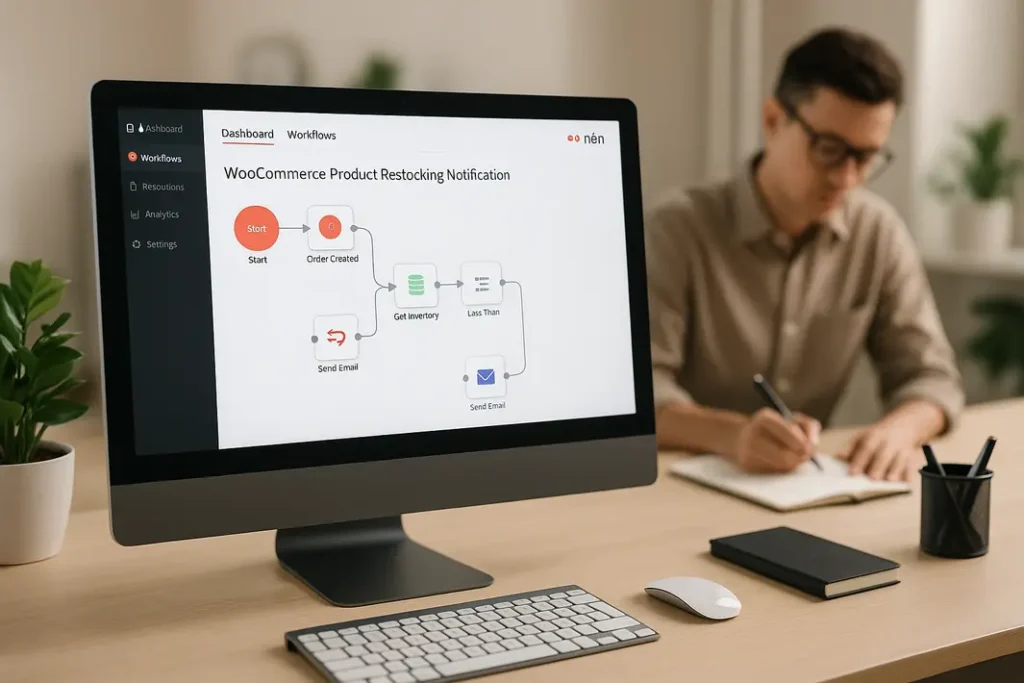
Keeping customers up-to-date with product availability is crucial for maintaining satisfaction and driving repeat sales in any WooCommerce store. Missed opportunities due to out-of-stock products or delayed restocking notifications can directly impact revenue and customer trust. Traditionally, sending restocking notifications is a manual process within WooCommerce. However, with the growing need to streamline operations and reduce repetitive tasks, automation tools like n8n present a highly effective solution. This guide provides a comprehensive, step-by-step tutorial on how to automate WooCommerce product restocking notifications with n8n, ensuring customers are instantly informed when items become available again, and store owners no longer have to spend time on manual updates.
n8n is an open-source workflow automation platform, allowing you to visually design processes that connect your apps and services. By integrating n8n with your WooCommerce store via APIs, you can trigger automated restocking alerts the moment product inventory levels update. Whether you manage a small shop or operate at scale, using n8n to handle WooCommerce product notifications not only saves time but also enhances your site’s professionalism and boosts customer engagement.
Understanding the Benefits of Automating WooCommerce Restocking Notifications
Why Automate with n8n?
Manually monitoring stock and sending out product notifications can quickly become unsustainable as your business grows. Automation is key for efficiency. With n8n, you can build custom workflows that monitor your WooCommerce product database in real time. As soon as a stock status changes—such as when an out-of-stock item is replenished—n8n can take over, sending an email, SMS, or other notification to customers who have subscribed to those alerts.
How This Impacts Store Operations
By implementing an n8n WooCommerce product restock automation, you streamline key processes. This translates into faster notification times, reduced human error, and the ability to reach more customers without extra work. Furthermore, customers appreciate being promptly informed, which can increase loyalty and conversion rates for restocked products.
Preparing WooCommerce and n8n for Integration
Prerequisites You Need
The first step to automate WooCommerce restocking alerts with n8n is ensuring both WooCommerce and n8n are properly set up. You’ll need admin access to your WooCommerce site, familiarity with REST APIs, and a running instance of n8n. n8n can be self-hosted or used via a cloud service.
Setting Up API Access in WooCommerce
Within your WooCommerce dashboard, generate API keys with sufficient permissions (usually ‘read’ access for product details and ‘write’ if you plan to update any data). This is done under WooCommerce > Settings > Advanced > REST API. Note down your Consumer Key and Secret, as these will be needed in n8n to connect and fetch product stock data. Make sure your REST API is enabled and accessible via HTTPS for security reasons.
Building Your n8n Workflow for WooCommerce Stock Alerts
Overview of the Workflow Structure
The core of the process is a scheduled n8n workflow that queries your WooCommerce products at regular intervals, checks stock status, and triggers notifications as needed. The basic steps are:
- Schedule the workflow run (e.g., every 15 minutes).
- Use the n8n HTTP Request node to connect to the WooCommerce API and retrieve product inventory data.
- Filter products where the stock status has transitioned from “out of stock” to “in stock.”
- For products now available, trigger an email or notification via your preferred communication channel.
Detailed Workflow Steps
Start the workflow with a ‘Cron’ node to define the frequency. Attach an HTTP Request node configured with your WooCommerce API credentials to pull the latest product data, focusing on stock status fields. Process the returned data using the Function node, where you compare the current status with previously cached information (for reliable detection of restocked items). If a match is found, use an Email node—or integrate with services like SendGrid or Mailchimp—for the notification delivery. Optional: Store the last stock statuses in a database (such as MySQL or Google Sheets) for an accurate state comparison across workflow runs.
Configuring n8n WooCommerce Restocking Email Notifications
Email Template Setup and Customization
To deliver a polished customer experience, customize the content of your email notifications. Within n8n, the Email node allows for dynamic message composition. You can pull product titles, images, URLs, and descriptions directly from the WooCommerce API response, ensuring emails are relevant and engaging. Consider including a clear call to action, such as a button linking customers straight to the restocked product page.
Advanced Notification Channels
While email is a primary choice for restocking alerts, n8n supports integrations with SMS gateways, push notification platforms, Slack, and more. Decide which channels best suit your audience and extend your workflow accordingly. This flexibility lets you send alerts in multiple formats, enhancing reach and ensuring timely delivery to every subscriber.
Handling Customer Subscriptions for Stock Notifications
Collecting and Managing Customer Emails
Before you can automate stock level alerts in WooCommerce with n8n, you need a mechanism for customers to sign up for restock notifications. Use existing WooCommerce extensions (such as a Waitlist or Back In Stock plugin) to capture customer interest whenever a product is out of stock. Ensure your system saves email addresses and the corresponding product IDs in a form accessible to your workflow—this can be a database, Google Sheet, or other tool n8n can access.
Ensuring Compliance and Data Security
With customer data involved, privacy and compliance with data regulations like GDPR are paramount. Make sure your workflow respects opt-in and opt-out preferences, and protect all personal information with secure storage and transmission methods. n8n supports encryption and can connect to secure databases or SaaS platforms for this purpose.
Testing and Monitoring Your n8n WooCommerce Product Restock Automation
Workflow Validation and Troubleshooting
Thoroughly test your n8n workflow to ensure it reliably detects restocked products and promptly notifies customers. Manually set products to ‘out of stock’ and then restock them to validate the process end-to-end. Use n8n’s built-in logging and execution tracking features to troubleshoot errors, such as incorrect API permissions or email delivery failures.
Continuous Monitoring and Optimization
Once live, monitor workflow performance and user feedback. Track open and click-through rates for emails, and periodically review whether subscribers are receiving timely, accurate notifications. Tweak workflow timing, message content, or notification channels as needed to maximize efficiency and customer satisfaction.
Summary
Automating WooCommerce restocking alerts with n8n brings multiple benefits: improved customer communication, better operational efficiency, and increased sales opportunities from timely notifications. By using n8n’s visual workflow designer and robust integrations, WooCommerce site owners can set up powerful restocking alert systems without ongoing manual effort. From preparing your site and configuring API access, through designing automated notification workflows, to managing and securing customer subscriptions, each step streamlines stock notifications to better serve both your business and your customers. With n8n, it’s easy to create automated restocking notices in WooCommerce, ensuring you never miss a chance to re-engage customers the moment popular products are back in stock.
FAQ
How do I collect customer emails for WooCommerce restocking notifications?
You can use a WooCommerce extension like Waitlist or Back In Stock plugins, which provide a simple way for customers to leave their email addresses when products are out of stock. Store these emails with associated product IDs where your n8n workflow can access them, such as in a Google Sheet or database.
Can n8n send SMS or push notifications instead of email for WooCommerce restocks?
Yes, n8n supports various integrations, allowing you to send SMS or push notifications using services like Twilio, Pushover, or Pushbullet. Simply add the relevant nodes to your workflow to reach customers via their preferred channel.
How frequently should I schedule the n8n workflow for checking stock updates?
The scheduling depends on your business needs and server resources. For most stores, running the workflow every 15–30 minutes strikes a good balance between timely notifications and resource usage. Extremely high-frequency checks may increase server load.
What information can be included in the restocking notification emails?
You can include product titles, descriptions, images, direct product links, and personalized messages. n8n allows dynamic content in email templates, making each message relevant to the subscriber and the specific restocked product.
Is it possible to pause or disable notifications for certain products in n8n?
Yes, you can add conditional logic in your workflow to exclude specific products based on tags, categories, or other criteria. Simply add a filter or IF node to skip sending notifications for products you want excluded from your automated alerts.