WooCommerce Refund Process with n8n: Automate Safely
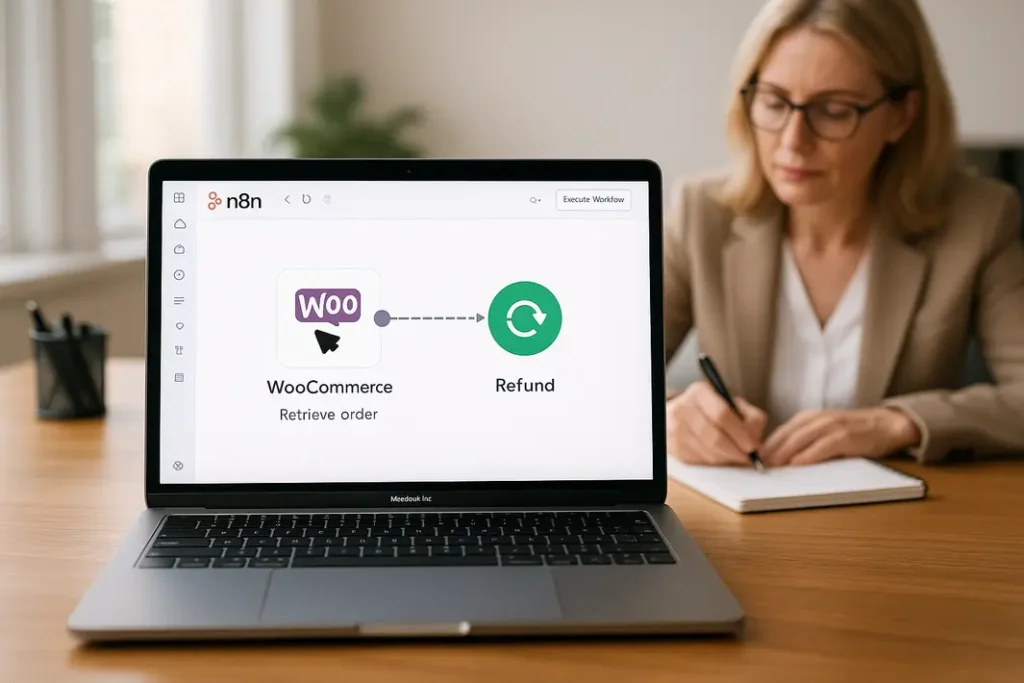
Refunds are a process with real money, real customers and an audit trail. Automating them does not mean refunding by script, it means removing the manual copying around the decision: collecting the request, checking it against your rules, routing it to a person, executing it and telling everyone.
This guide shows how to automate the refund process for WooCommerce with n8n, and where to keep a human in the loop. It is part of the same family of flows we describe in our n8n workflow automation work.
Decide what is automatic and what is not
Split refunds into three groups before you build anything:
- Automatic: clear, low-value cases, such as an order cancelled before shipment.
- Approval needed: returns after delivery, partial refunds, or amounts above a limit. A person approves with one click.
- Never automatic: suspected fraud, disputes and chargebacks.
The workflow
- Intake. A Webhook node receives the request from a form, or a WooCommerce Trigger fires on an order status change.
- Look up the order with the WooCommerce node: status, items, payment method, dates and what was already refunded.
- Check the rules with an IF or Switch node: within the return window, not already refunded, amount below the limit.
- Route. Automatic cases continue. The rest go to an approval step, for example a Slack message with Approve and Reject buttons or an email with links.
- Execute the refund. Create a refund through the WooCommerce REST API (the orders refunds endpoint), using the HTTP Request node with your API credentials. If the payment gateway supports it, WooCommerce can also send the money back automatically through the gateway.
- Restock returned items when your rules say so.
- Notify and record. Email the customer, add an order note and log the decision, who approved it and when.
Safety rules that matter
- One refund per request. Store a request ID and refuse to process it twice. Duplicate refunds are the costliest bug in this process.
- Cap the amount. Never refund more than the remaining refundable total of the order.
- Separate roles. The person who requests and the person who approves should not be the same account for high amounts.
- Keep an audit trail. Record every decision and its reason outside n8n as well, for accounting.
- Handle gateway failures. If the gateway rejects the refund, alert a person with the order ID. Do not retry blindly.
Accounting and tax
A refund usually needs a matching credit note in your accounting system. Add a step that creates it, or at least queues it for your accountant, and check the rules for your country with them. Do not assume a refund in WooCommerce is enough for your books.
Customer communication
- Confirm receipt of the request immediately, with the expected timeline.
- When the refund is issued, say how much, to which payment method and how long the bank may take.
- If a request is rejected, explain why and what the customer can do next.
Frequently asked questions
Can n8n refund WooCommerce orders automatically?
Yes, through the WooCommerce REST API. We recommend automating only clear, low-risk cases and keeping approvals for the rest.
Does a refund also return the money to the customer?
That depends on the payment gateway. Many gateways can return the money from the refund action. Others require a manual step in the gateway dashboard.
How do I avoid refunding twice?
Store a unique request ID, check the order’s refunded total before every refund, and refuse requests that were already processed.
Do I need to involve my accountant?
Yes. Refunds normally need credit notes and correct tax treatment. Agree the process with your accountant first.
Need a refund workflow designed?
We design store processes with clear rules and audit trails. See WooCommerce system integrations or send us a brief.