how to automate WooCommerce product updates using n8n workflows
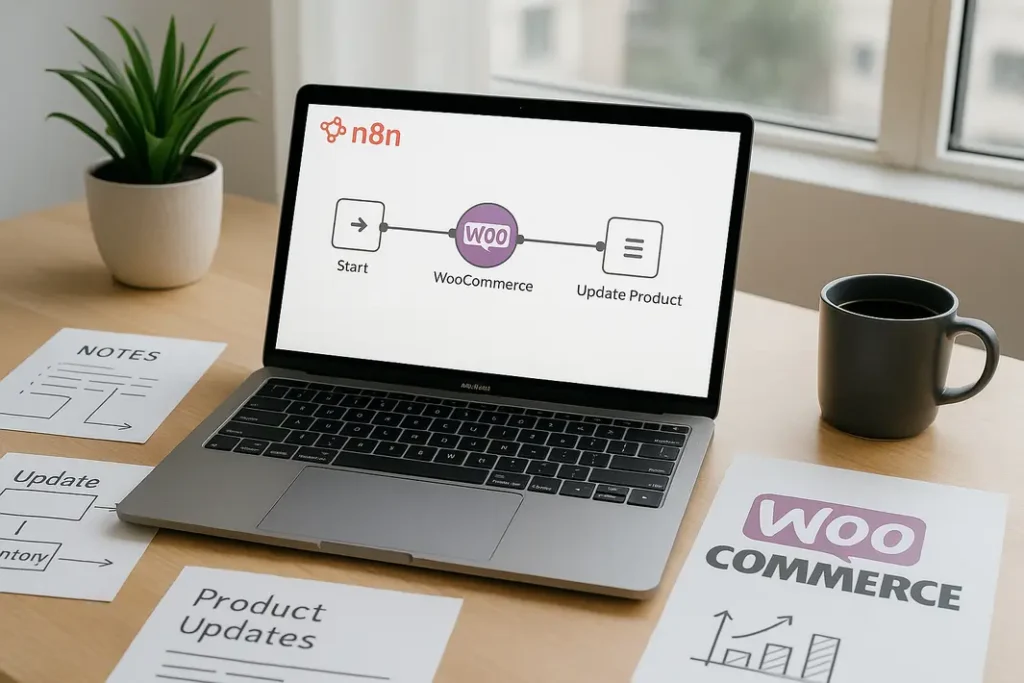
WooCommerce store owners face a constant challenge: keeping product information and inventory up to date. Manual updates are time-consuming, prone to errors, and simply not sustainable as your catalog grows. Automation tools like n8n offer a practical solution, helping store managers save countless hours while improving data accuracy. In this step-by-step tutorial, you’ll learn how to automate WooCommerce product updates using n8n workflows. From configurations to real-world automation examples, this guide provides everything you need to effectively streamline your WooCommerce product management using n8n.
Understanding n8n and WooCommerce Integration
What is n8n and How Does it Work?
n8n is an open-source workflow automation tool that connects various applications and services—including WooCommerce. Unlike strictly cloud-based automation platforms, n8n can be self-hosted, providing flexibility and full control over your workflows and data privacy. It uses nodes to represent actions, triggers, and data flows, making automation accessible without deep programming skills.
Why Automate WooCommerce Product Updates with n8n?
Manually updating products is not only time-intensive but increases the risk of human errors, such as mismatched prices or incorrect stock levels. With n8n, you can build workflows that connect to WooCommerce via its REST API, instantly pushing updates from spreadsheets, ERP systems, supplier feeds, or other apps. This approach is ideal for busy shops needing reliable and frequent updates—for instance, daily n8n WooCommerce inventory update routines or responding instantly to supplier stock changes.
Preparing Your WooCommerce Store and n8n Environment
Setting Up API Access in WooCommerce
Before you can begin automating product updates, your WooCommerce store must allow secure API access. Inside your WordPress admin, navigate to WooCommerce settings, enable the REST API, and create a dedicated API key for n8n. Assign the key appropriate permissions—usually “Read/Write”—since you’ll be updating product data.
Installing and Configuring n8n
You can run n8n via Docker, desktop apps, or on a web server. Install the platform and launch the interface, then add the WooCommerce node by inputting your store URL, API key, and secret. Test the connection to ensure n8n can communicate with your WooCommerce site. This setup phase is critical to the success of your n8n WooCommerce product sync automation workflows.
Building an n8n Workflow for WooCommerce Product Updates
Choosing a Trigger: Event-Based or Scheduled Updates
There are multiple ways to start an update workflow. For instance, you might schedule a daily n8n WooCommerce inventory update using the Cron node, or respond to file uploads via email, FTP, or cloud storage triggers. The right trigger depends on your business flow—do you update products from a daily supplier feed, or only after editing a master spreadsheet?
Adding Data Source Nodes
n8n allows you to integrate data from diverse sources. For example, the Google Sheets node can extract product data from a shared inventory file, while HTTP Request nodes can fetch fresh stock or price information from supplier APIs. Organize incoming data with Set and Function nodes for mapping, transformation, or filtering, ensuring accurate and relevant updates for your products.
Using the WooCommerce Node to Update Products
Once your data is prepared, incorporate the WooCommerce node—the heart of WooCommerce product automation n8n examples. Use workflows to match incoming data (SKU, ID, name) and update fields such as price, inventory, stock status, or custom attributes. Batch and conditional logic allow granular updates (e.g., updating only items with low stock).
Advanced Automation Scenarios
n8n Editing WooCommerce Products Automatically Based on Triggers
There are many ways to use n8n for WooCommerce automatic product update workflows. For example, you can set up an automation to detect changes in a supplier CSV file uploaded to Google Drive. When new files are detected, n8n parses the changes, cross-references affected SKUs, and updates only the relevant products. This minimizes unnecessary API calls and ensures your catalog is always current.
Conditional Updates and Error Handling
Robust n8n workflows include condition nodes to check for valid or changed data before updating WooCommerce. You might use an IF node to confirm that the new price is different from the current price before pushing an update. For stability, implement error-handling paths that log failures, retry updates, or send alert emails when issues are detected, providing visibility into your automated processes.
n8n WooCommerce Product Automation Examples
Sample Workflow: Syncing Inventory from Google Sheets
Suppose you keep a master inventory spreadsheet in Google Sheets that team members update daily. An n8n workflow could look like this:
- Trigger: Google Sheets node finds updated rows every hour.
- Processing: Function node maps columns (SKU, price, stock) to WooCommerce fields.
- Conditional: IF node checks if stock value or price has changed.
- Action: WooCommerce node updates matching products.
- Notifications: Email node summarizes actions, listing any skipped or failed updates.
Automating Supplier Feed Integration
If you get product info in CSV format from suppliers, an n8n workflow can regularly fetch and parse these files, updating the WooCommerce catalog automatically. This is essential for stores with large or frequently changing product selections, showcasing the reliability of n8n WooCommerce inventory update strategies.
Testing, Monitoring, and Maintaining Your Workflows
Testing your n8n Workflow for WooCommerce Product Updates
Always test workflows in a safe environment with test products to avoid unintended changes or data loss. Use the preview and debug features in n8n to confirm that data is mapped correctly, duplicates are prevented, and only intended fields are modified. Testing ensures your WooCommerce automatic product update with n8n won’t disrupt live catalog information.
Monitoring Workflow Performance
Once live, set up alerting mechanisms—such as emails or Slack messages—so you’re notified if a step fails or completes. Consider using n8n’s built-in logging or external tools to keep records of all product updates. Monitoring enables rapid response in case a workflow encounters errors, protecting your online store’s integrity.
Managing and Scaling Automation Over Time
As your store grows, refine workflows to incorporate new data sources or more complex logic. For example, orchestrate updates from multiple suppliers, synchronize product images, or integrate with ERP systems. Keeping your workflows modular and well-documented helps adapt them easily to future needs, reinforcing the long-term value of WooCommerce product automation n8n examples.
Summary
Automating WooCommerce product updates using n8n workflows transforms inventory management from a labor-intensive task into a streamlined, reliable process. After setting up secure WooCommerce API access and preparing n8n, you can build tailored workflows that update your catalog based on real-time data from spreadsheets, supplier feeds, or other business systems. Advanced automations allow conditional updates, error handling, and integration with multiple channels. By continuously testing, monitoring, and refining these workflows, WooCommerce storeowners can minimize errors, save substantial time, and scale their operations with confidence. n8n’s flexibility ensures that as your store’s needs evolve, your automation processes stay adaptable and robust.
FAQ
How do I get started with WooCommerce automatic product updates using n8n?
Begin by enabling the WooCommerce REST API and generating API keys. Install n8n, configure the WooCommerce node with your credentials, and build workflows that pull data from your chosen sources. Test updates on a staging site before going live to ensure accuracy and safety.
What are the most common triggers for n8n WooCommerce product sync automation?
Popular triggers include scheduled events (using Cron), file uploads to cloud storage, changes in Google Sheets, or webhooks from other inventory systems. Select the trigger that aligns best with how your product data changes.
Can n8n update specific WooCommerce product fields, like price or stock status only?
Yes, n8n workflows can target and update individual WooCommerce product fields such as price, inventory, categories, or custom attributes. The workflow logic can check for changes and update only the specified fields, leaving other information untouched.
How do I monitor and troubleshoot issues with n8n editing WooCommerce products automatically?
Enable logging within n8n and set up alerts for critical workflow steps. Use the n8n UI’s execution logs to debug failures, identify data mismatches, or check for API connection problems. Testing regularly and maintaining logs helps quickly resolve any errors.
Is it possible to use n8n for bulk WooCommerce product updates across thousands of products?
Absolutely. n8n handles bulk operations well, especially with batch processing and robust API calls. For large catalogs, design workflows to process data in manageable segments and monitor execution to ensure performance and reliability.