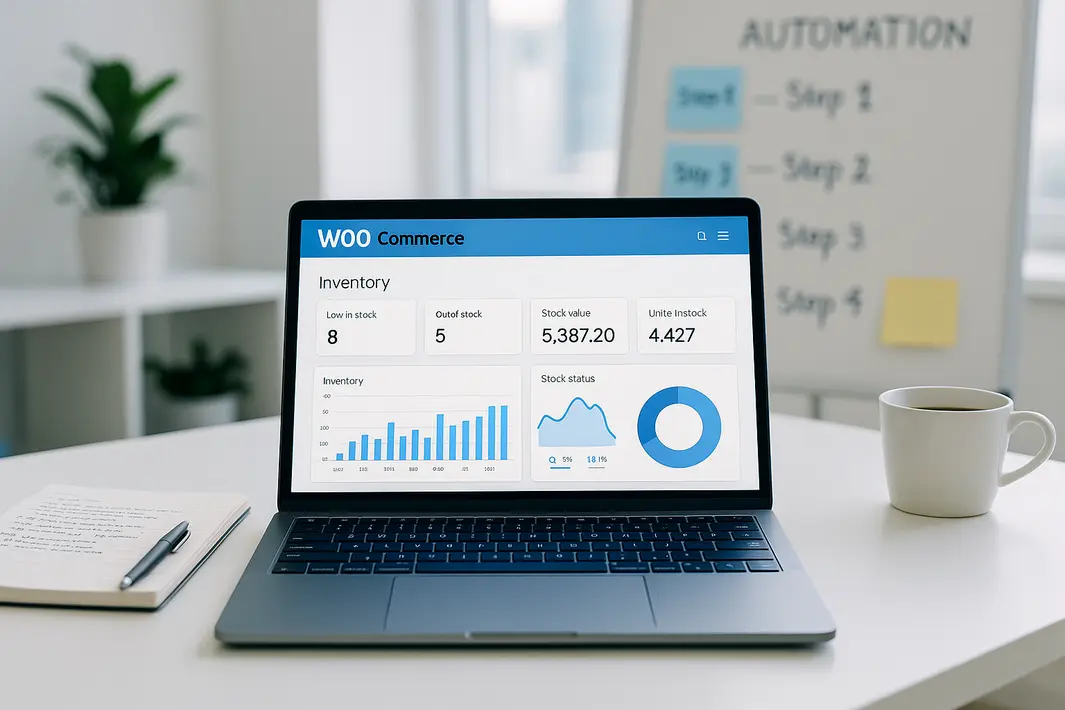
how to automate WooCommerce inventory management with n8n
Introduction
Maintaining accurate inventory is often one of the most challenging aspects of running a WooCommerce store. As inventory grows and orders increase, manual stock management can quickly become time-consuming and prone to error. Incorrect stock levels not only risk lost sales but can also hurt customer trust and store reputation. Automation can solve these challenges, allowing WooCommerce store owners to focus more on growth and less on repetitive administrative tasks. One powerful tool in the realm of no-code and low-code automation is n8n, a platform that lets you visually create workflows to automate tasks between different services—including WooCommerce. Learning how to automate WooCommerce inventory with n8n will give store owners a competitive advantage, save time, and reduce costly mistakes. This practical guide will walk you through a step-by-step n8n WooCommerce automation tutorial, showing you how to seamlessly monitor and update stock levels without continuous oversight. By the end, you’ll understand how to configure a workflow to suit your specific store needs and ensure your product data is always accurate and up to date.
Understanding n8n and WooCommerce Integration
What is n8n and how does it help?
n8n is an open-source workflow automation tool designed to connect different applications and automate tasks visually. With its user-friendly node-based interface, it supports a wide array of integrations, including e-commerce platforms like WooCommerce. Store owners can use n8n to establish a reliable, automated flow of information between WooCommerce and other business tools, minimizing manual intervention and errors. Through n8n’s native WooCommerce nodes, it’s possible to fetch, create, update, or delete product inventory, reflecting changes as soon as they happen elsewhere in your business.
Why automate WooCommerce inventory with n8n?
Manually updating WooCommerce stock is tedious, especially when you use external systems for purchasing, warehouse management, or sync with suppliers. Automated workflows not only accelerate this process but also enhance accuracy, meaning fewer oversells and undersells. n8n’s flexibility allows you to design custom triggers and actions for your WooCommerce stock automation, such as adjusting inventory when receiving supplier updates or modifying stock counts after external sales.
Preparing for n8n Inventory Management Setup with WooCommerce
Initial Requirements and Configuration Steps
Before diving into workflow creation, it’s crucial to ensure that you have the required systems configured for seamless communication. First, confirm that your WooCommerce store is set up and using REST API authentication. You will need the WooCommerce store URL, consumer key, and consumer secret to grant n8n access. For hosting n8n, you can use their cloud service or self-host on your server, depending on your needs and technical capabilities. Furthermore, take note of which inventory changes you want to automate—such as updates upon new sales, returns, manual stock adjustments, or external purchases.
Installing Required Plugins and Setting Permissions
Within WooCommerce, generate API credentials under the Advanced > REST API section. Assign them to a user role with sufficient permissions for inventory actions. If you plan to integrate with other tools (like spreadsheets or warehouse systems) via n8n, collect their API information as well. Finally, review your WooCommerce site’s security, ensuring only trusted platforms like n8n can access the API endpoints.
Building Your n8n Workflow for WooCommerce Inventory Automation
Designing the Trigger
n8n workflows operate by responding to triggers, which are events or schedules that start the automation. For WooCommerce stock automation in n8n, decide on the trigger that suits your needs. Common triggers include time-based checks (e.g., every hour), Webhooks from WooCommerce indicating an order or inventory change, or events in external platforms that should update WooCommerce. In n8n, add a trigger node—such as the WooCommerce node for listing recent orders, or an HTTP Webhook—depending on your automation strategy.
Fetching and Updating Product Data
Next, connect the trigger to workflow nodes responsible for processing inventory. With the WooCommerce node, you can list products, get details for specific SKUs, or fetch real-time inventory status. If syncing from an external source—say a supplier’s spreadsheet—add Google Sheets or another data node to pull the information. Use the n8n function node to transform or map the quantities as required, then funnel this data to another WooCommerce node configured for “Update Product.” Provide the product ID or SKU, and pass the new stock count directly.
Advanced Customization and Handling Special Cases
Automating Multi-Channel Inventory Changes
Many WooCommerce stores sell through multiple channels, including physical locations or third-party marketplaces. Use n8n to aggregate inventory data from these sources, updating WooCommerce only when confirmed changes occur elsewhere. For example, you might fetch new orders from an external marketplace via their API, adjust the available stock, and sync it back to your WooCommerce database. n8n’s flexibility also lets you avoid double-counting or delayed updates that can arise with simpler sync tools.
Error Handling and Notifications
Errors such as failed API calls or conflicting data entries can disrupt your inventory workflow. Incorporate error-handling nodes in n8n to catch such events. Configure conditional branches that send notifications—via email or Slack—to admins if an update fails or data conflicts. This ensures you’re always informed when manual intervention might be required, while the majority of updates run on autopilot. Logging each step within n8n also provides transparency when troubleshooting issues.
Best Practices for Reliable WooCommerce Stock Automation with n8n
Optimizing Workflow Performance
Efficient n8n inventory management setup for WooCommerce depends on performance tuning. Use filters to process only changed products, rather than updating the entire catalog on each run. Schedule checks at reasonable intervals to avoid excessive API calls that could slow your store. Regularly monitor workflow logs, adjusting triggers and logic as your product range or sales volume grows.
Ensuring Data Consistency and Security
Always validate incoming data before updating stock levels. Store temporary copies of prior data in n8n so you can identify anomalies and rollback accidental changes if needed. Restrict API permissions on both n8n and WooCommerce, granting only the minimum necessary access. Regular software updates and backups further safeguard your automation process from outages or data loss.
Summary
Automating inventory management in WooCommerce using n8n is a practical and scalable solution for store owners seeking to maintain precise control over stock without manual repetition. By leveraging n8n’s intuitive workflow builder, you can create custom triggers tied to WooCommerce events, retrieve and update product details, and seamlessly connect with other inventory data sources. Building robust workflows not only removes human error but also saves time and prevents costly overselling or stockouts. Remember to follow best practices in workflow design—such as efficient triggers, security settings, and error notifications—to maximize reliability. As your business evolves, n8n offers the flexibility to extend or modify your workflows, ensuring your e-commerce operations are always one step ahead in efficiency and accuracy.
FAQ
How do I connect WooCommerce to n8n securely?
Create WooCommerce REST API keys with limited permissions specifically for n8n, and use HTTPS to encrypt all API communications. Store credentials securely in environment variables or n8n’s credential manager, and review access logs regularly.
Can n8n sync inventory from external systems to WooCommerce?
Yes, n8n can connect with systems like Google Sheets, ERPs, or supplier APIs. By configuring nodes for these sources and mapping product IDs or SKUs, n8n can fetch stock counts and update WooCommerce inventory in real time or on a schedule.
What triggers can I use for WooCommerce stock automation n8n workflows?
You can use time-based triggers for regular checks, HTTP webhooks for real-time event handling, or triggers from events in external platforms. Select the one that matches your operational workflow best.
Is it possible to automate grouped and variable products in WooCommerce with n8n?
Absolutely. n8n’s WooCommerce nodes support grouped, variable, and simple products. You must ensure your workflow fetches the right product or variation IDs and provides accurate stock data for each variant.
How can I troubleshoot failed stock updates in n8n?
Use n8n’s built-in logs to identify errors, and implement error-handling nodes to catch exceptions or send notifications. Testing your workflow with sample data and monitoring results after each run greatly assists in diagnosing and resolving issues.