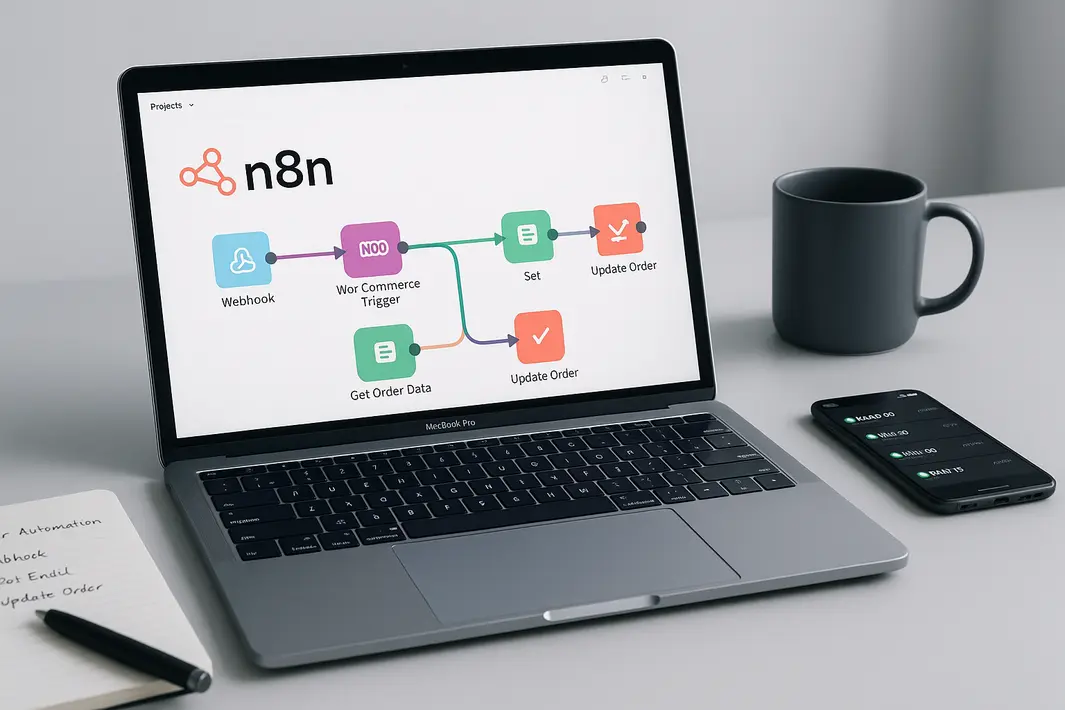
how to use n8n for WooCommerce order automation
Introduction
WooCommerce is a powerful platform for running online stores, but as your business grows, handling orders manually can become time-consuming and error-prone. Order automation can save online shop owners a significant amount of time, reduce mistakes, and help maintain a seamless customer experience. n8n, an open-source workflow automation tool, offers a flexible way to connect WooCommerce with a variety of apps and services, enabling you to automate repetitive order processing tasks efficiently. This tutorial presents a comprehensive, step by step WooCommerce n8n integration guide designed for store owners and developers who want to streamline their workflows without resorting to complicated custom code or expensive SaaS solutions. Whether you’re aiming to notify your team about new orders, update your CRM, send customized customer emails, or integrate with inventory management systems, automating WooCommerce orders with n8n makes these processes far easier and less labor-intensive. This article explores practical n8n workflow examples for WooCommerce, taking you through the configuration, workflow design, and deployment process to achieve WooCommerce automation using n8n.
Understanding the Role of n8n in WooCommerce Automation
Why Choose n8n for Automating WooCommerce Orders?
n8n has rapidly gained popularity among eCommerce owners and developers for its ability to automate business processes without extensive coding. Its visual workflow editor allows users to craft complex automations by simply connecting nodes that represent different services or actions. By leveraging n8n, WooCommerce order processing setup becomes more accessible and customizable. Unlike proprietary automation services, n8n is open-source and self-hosted, giving businesses full control over their data and integrations, as well as the opportunity to modify or extend workflows to fit unique store requirements.
What Can Be Automated With n8n?
The capacity for automation is vast. Examples include sending notifications to Slack or email as soon as a new order is placed, updating or syncing orders with Google Sheets, adding customers to email marketing lists upon purchase, and connecting WooCommerce with shipping, inventory, or fulfillment services. Each of these processes traditionally demands manual input; using n8n, they can run seamlessly in the background, freeing up valuable time for store owners and staff.
Preparing for the n8n WooCommerce Order Automation Tutorial
Prerequisites: What You Need Before Getting Started
Before proceeding with this tutorial for WooCommerce order automation with n8n, ensure you have the following elements ready:
- An operational WooCommerce store with admin access
- Web hosting or a server where n8n can be installed (cloud, VPS, Docker, or even n8n.cloud)
- API credentials (Consumer Key and Secret) from WooCommerce for authenticating API requests
- Basic understanding of WooCommerce REST API endpoints
- Access to n8n user interface for building and deploying workflows
By confirming these prerequisites, the process of connecting and integrating the platforms becomes much smoother and avoids common setup pitfalls.
.h3>Setting Up API Access in WooCommerce
To enable n8n to communicate with WooCommerce, you’ll need to generate API keys within your WooCommerce store. Head to WordPress Admin > WooCommerce > Settings > Advanced > REST API. Click “Add Key,” create a key with read/write permissions, and copy the generated Consumer Key and Consumer Secret. You will use these credentials to authenticate the connection from n8n to your WooCommerce store, laying the groundwork for reliable order data transfer.
Step by Step WooCommerce n8n Integration
Connecting n8n to WooCommerce
Begin by logging into your n8n instance. Locate the workflow editor and create a new workflow. Add a new node and search for the WooCommerce node or use the HTTP Request node if your n8n version does not have native WooCommerce support. Configure the node to trigger on new customer orders using the WooCommerce orders endpoint (/wp-json/wc/v3/orders). Enter your API credentials to establish secure access.
Configuring Webhooks for Real-Time Order Detection
To automate order processing tasks as soon as they occur, set up a WooCommerce webhook. In WooCommerce, navigate to WooCommerce > Settings > Advanced > Webhooks. Add a new webhook with a topic such as “Order Created” and point the delivery URL to your n8n webhook node. This configuration allows n8n to receive real-time order events from WooCommerce and trigger your workflow instantly, ensuring up-to-date automations.
Building Your First Workflow: Order Notification and Processing
Example: Email Team When an Order is Placed
As a common use case, let’s automate sending an internal email whenever a new order arrives. Add an Email node to your workflow, connect it after the webhook or WooCommerce order-fetching node, and configure it to send a message with relevant order details to your team. n8n’s workflow editor lets you insert dynamic data, such as customer name, order ID, and purchased products, into the email.
Adding Conditional Logic and Data Mapping
With n8n, you can add Switch or IF nodes to apply conditional logic—such as only notifying your team for high-value orders or specific products. Use Set or Transform nodes to format, map, or filter the order data before triggering subsequent actions. This level of customization allows you to build workflows that mirror your business rules and operational requirements accurately.
Advanced n8n Workflow Examples for WooCommerce
Multi-Step Order Processing Automation
Beyond basic notifications, n8n WooCommerce order processing setup can include a variety of advanced automations. Consider workflows like:
- Creating tasks in project management tools (e.g., Trello, Asana) for new orders
- Automatically generating invoices and sending them to customers
- Syncing order data to Google Sheets for financial tracking
- Integrating order fulfillment with third-party logistics providers
Each of these examples can be built by combining WooCommerce triggers with HTTP, Email, and third-party integration nodes in n8n. By experimenting with branching, iteration, and custom scripting nodes, you unlock even more sophisticated automations.
Error Handling and Logging
It’s important to track workflow execution and catch errors. Add error triggers or catch nodes in n8n to receive alerts if any part of the automation fails, ensuring no orders slip through unseen. This reliability is critical for practical WooCommerce automation using n8n in production environments.
Deploying and Monitoring Your Automated Workflow
Testing and Optimization
Before relying on your automation processes, use test orders to verify that each step works as intended. Check that emails are sent, data arrives in spreadsheets, and notifications trigger as designed. Monitor workflow execution within n8n’s dashboard, reviewing logs for potential issues or missed events.
Scaling and Ongoing Maintenance
Your business requirements may evolve, so periodically review and update your automated workflows. As WooCommerce releases new versions or as new integrations become necessary, n8n makes it straightforward to adapt your automations. For high-volume stores, consider scaling n8n’s server resources and using queue-based nodes to manage large numbers of workflows concurrently.
Summary
Automating WooCommerce orders with n8n empowers online store owners to drastically reduce the manual workload associated with order processing, customer notifications, team coordination, and third-party service integration. Through a step by step approach—starting with connecting n8n to WooCommerce, establishing webhooks, designing custom workflows, and implementing monitoring—you can streamline your order management for efficiency and reliability. Whether you are just beginning with n8n WooCommerce order automation tutorial or looking to take your workflow examples for WooCommerce further, n8n’s open and extensible architecture provides the flexibility needed for nearly any automation scenario. Maintain, optimize, and expand your automations as your store grows, and enjoy the peace of mind that comes with well-oiled eCommerce operations.
FAQ
How do I create a basic WooCommerce order automation workflow in n8n?
Start by setting up a webhook in n8n to listen for new order events from WooCommerce using a WooCommerce webhook. Then, add action nodes—like sending an email or updating a spreadsheet—based on the incoming order data.
Can I automatically add WooCommerce customers to a mailing list using n8n?
Yes, n8n can connect WooCommerce orders with popular mailing list services. After capturing the order event, you can add a node that sends customer information to your preferred email marketing tool via direct integration or API.
Is it possible to automate order fulfillment updates back to WooCommerce?
Absolutely. With n8n, you can listen to fulfillment events from your shipping provider and use the WooCommerce API to update order statuses or add tracking information, keeping your customers and systems in sync automatically.
What should I do if a workflow fails or encounters an error?
n8n provides error handling nodes and logging features. Set up error triggers or notifications so you are alerted when failures occur, allowing corrective action before customers are affected.
Do I need to know how to code to automate WooCommerce with n8n?
For most tasks, no coding is required. n8n’s visual editor and node-based design enable users to build complex automations using a simple, drag-and-drop interface. However, scripting capabilities are available for more advanced requirements.