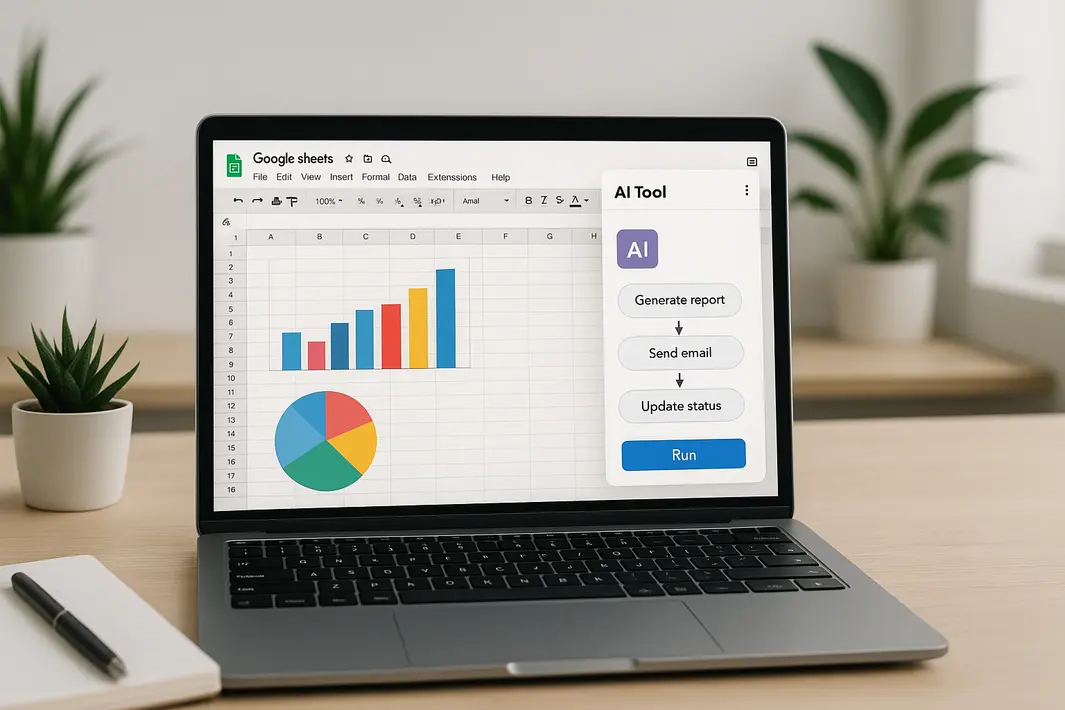
how to automate Google Sheets workflows with AI tools
Automating tasks inside Google Sheets is quickly transforming how individuals and teams manage their data, reports, and forecasting. Repetitive spreadsheet processes, once manual and time-consuming, are increasingly streamlined with artificial intelligence, offering efficiency gains and smarter data handling. In this Google Sheets workflow automation tutorial, you’ll learn practical approaches and step-by-step solutions to leverage AI tools for Google Sheets automation. This guide is shaped for both beginners and intermediate users, offering insights on how to automate tasks in Google Sheets using AI to reduce busywork, ensure accuracy, and save time across everyday spreadsheet operations.
With the rapid development of cloud-based AI platforms such as OpenAI, Google Cloud AI, and third-party automation solutions like Zapier and Make (formerly Integromat), automation for Google Sheets with AI has become accessible to virtually anyone. Whether your aim is to clean up large datasets, auto-fill information, summarize trends, or trigger personalized alerts, this tutorial explains everything you need to get started. You’ll find hands-on walkthroughs to connect AI to your Sheets, automate spreadsheet processes with AI, and implement smarter workflows that require little to no code. By the end of this article, you’ll have an actionable blueprint for easy AI workflow automation for Google Sheets tailored to your unique needs.
Understanding the Basics of Google Sheets and AI Integration
Before automating anything, it’s important to understand how Google Sheets and AI can work together. Google Sheets is a flexible, collaborative, cloud-based spreadsheet solution that supports plugins, scripts, and API integrations. AI, meanwhile, includes a wide variety of tools and services capable of processing data, recognizing patterns, and generating content based on input. The integration of AI with Google Sheets enables users to build workflows that eliminate manual entry, automate data categorization, and create reports with minimal supervision.
Popular AI Automation Tools for Google Sheets
- Google Apps Script: A cloud-based scripting language for extending Google Sheets. It can call AI services through APIs.
- OpenAI GPT: Automate text generation or summarization tasks via the GPT API connected to your spreadsheets.
- Zapier and Make: No-code tools enabling workflow automation between Google Sheets and third-party AI services.
- Built-in Smart Features: Google Sheets offers Explore (data insights) and Smart Fill—simple AI-driven functionality native to Sheets.
The best approach depends on your technical comfort and specific needs. For example, cleaning addresses, interpreting survey data, or generating periodic summaries can each be automated with different AI solutions.
Setting Up Your First AI-Driven Google Sheets Automation
To automate tasks in Google Sheets using AI, start by determining which repetitive workflow you want to improve. Common scenarios include data classification, report generation, duplicate removal, or notification triggers. As an illustration, let’s build a simple workflow that classifies customer feedback comments using AI and adds that classification directly to your sheet.
Step by Step Google Sheets AI Automation Using OpenAI
- Prepare Your Data Sheet: Collect the column with free-form responses (e.g., customer comments).
- Get Access to the OpenAI API: Register with OpenAI and get your API key to interact with GPT models.
- Open Google Apps Script: From your Google Sheet, click on Extensions → Apps Script to open the script editor.
- Write the Integration Script: Use the Apps Script editor to write JavaScript code that sends each comment to GPT, receives the AI’s classification (positive, negative, neutral), and writes it back to the appropriate cell.
- Automate the Trigger: Set up the script to run automatically on form submission or at scheduled intervals, ensuring hands-free classification as data is collected.
Though this example uses OpenAI, similar steps apply for Azure or Google AI services. No-code users can use Zapier or Make for a GUI-driven approach, connecting Google Sheets to AI-powered sentiment analysis services without writing code.
Automating Data Cleaning and Structuring with AI
Data cleaning is a tedious but essential part of working with spreadsheets. AI can detect and resolve typographical errors, standardize formatting, enrich missing information, and spot duplicates in seconds. Such automations not only ensure faster turnaround but also yield much more reliable datasets for further analysis. Integrating AI tools for Google Sheets automation, removing redundancies, or harmonizing formats becomes a continuous, hands-off process.
Examples of Data Cleaning Automations
- Smart Fill and Smart Cleanup: Google Sheets natively suggests autofill solutions and highlights issues with the Data → Cleanup suggestions… menu.
- AI-Driven Scripts: Use Apps Script or third-party APIs to correct inconsistent product names or addresses. For example, sending each entry to Google’s Cloud Natural Language API for parsing and returning the cleaned data.
- No-Code Cleaning Workflows: Connect Sheets to services on Zapier that validate emails, remove invalid contacts, or enrich contact records with company data.
Automating these cleansing processes results in dataset consistency, annotation quality, and significant time savings compared to manual corrections.
Automating Reporting and Insights Generation
Reporting is another area where AI-empowered Google Sheets workflow automation shines. Instead of spending hours creating repetitive charts, calculating KPIs, or summarizing trends, users can leverage AI for dynamic, auto-generating reports. These automations pair well with dashboards, ensuring that key metrics and executive summaries are always up to date and ready to share.
Workflow Example: Automated Monthly Sales Report
- Data Pipeline Setup: Set up scheduled imports (via Apps Script or Make) of raw sales data into a master Google Sheet.
- Summary Generation: Use an AI integration (e.g., GPT or Google’s AutoML) triggered via Apps Script to summarize product sales and generate a natural language overview for the month.
- Insight Automation: Use conditional formatting, charts, and Pivot Tables triggered by automation scripts to visualize top trends, empowering stakeholders with real-time insights.
This end-to-end reporting process, previously requiring manual effort every cycle, can now be fully automated with AI—offering not just accuracy, but timely decision support as well.
Trigger-Based Workflows and Notifications with AI
One of the most powerful use cases for automation for Google Sheets with AI is the ability to trigger workflow steps and instant notifications based on sheet events or data conditions. For example, you may want an email alert when a value exceeds a threshold, or a Slack message sent if negative feedback is detected in a survey column. AI can both interpret the triggers and personalize the content of the alerts, offering significant workflow flexibility.
Automating Alerts and Actions
- Using Apps Script: Set up onEdit or onChange triggers in your Sheets scripts to watch for specific data changes and launch AI-generated messages or summaries.
- Via No-Code Platforms: Use Zapier to monitor new sheet rows or updates, filter data, and route it to an AI (like OpenAI or Google AI) before delivering a custom alert to platforms such as Gmail, Slack, or Teams.
- Smart Notification Content: Pass critical context or even raw user feedback through AI to generate summaries tailored to the recipient, making the notifications relevant and actionable.
This level of workflow automation ensures your team operates proactively, responding instantly as conditions in your Sheets evolve.
Choosing the Right AI Automation Strategies for Your Google Sheets
There is no universal best way to automate spreadsheet processes with AI. Optimal strategies depend on your objectives, team skillset, security, and cost considerations. Some teams may favor low-code or no-code tools for their accessibility and broad integration. Others, especially those dealing with proprietary data, may need the tighter control offered by custom Apps Script and API-based solutions. Consider starting with simpler, easy AI workflow automation for Google Sheets and building towards more sophisticated integrations as confidence grows.
Key Decision Points
- Scope: Identify bottleneck processes that can deliver major time savings away from manual work.
- Tech Comfort: Choose between low-code tools (Zapier, Make) or script-driven workflows (Apps Script, Python APIs).
- Security and Privacy: Evaluate the policies of third-party AI tools with sensitive or regulated data.
- Scalability: Automate not just a single workflow, but also lay the groundwork for interconnected automation as your needs grow.
No matter your starting point, the most important step is to experiment and iterate, fine-tuning automations that fit the way your business, research lab, or personal projects function best.
Summary
Automating Google Sheets workflows with AI tools is a practical solution for anyone looking to save time, reduce manual errors, and unlock deeper insights from their data. By harnessing AI tools for Google Sheets automation—from basic Apps Script integrations to no-code options like Zapier and advanced third-party APIs—users can free themselves from repetitive tasks and focus on strategic work. This Google Sheets workflow automation tutorial outlined how to automate tasks in Google Sheets using AI, including data cleaning, classification, automated reporting, and intelligent alerts. Carefully mapping your needs, experimenting with available tools, and scaling up incrementally will ensure success. As AI evolves, the possibilities for spreadsheet automation will only multiply, making now the perfect time to start integrating smart automation into your Google Sheets workflows.
FAQ
What are the easiest AI tools for Google Sheets automation without coding?
No-code platforms like Zapier and Make are often the easiest way to connect Google Sheets to AI services without writing scripts. They offer drag-and-drop workflows, integration with hundreds of AI apps, and step-by-step templates for common spreadsheet automations.
Can Google Sheets AI automation handle confidential or sensitive data?
Handling sensitive data with AI in Google Sheets requires careful selection of tools and compliance with privacy policies. Native Google Apps Script stays within Google’s cloud but using external AI APIs like OpenAI may transfer data out of your control. Always review app security before automating sensitive workflows.
How do I create an automatic email alert based on Google Sheet changes using AI?
You can use Google Apps Script to detect sheet changes and trigger an email alert. For personalized emails, send the new row data to an AI, generate a summary or recommendation, and then automate the sending of a customized email from within your script or via a no-code integration like Zapier.
What are common pitfalls in Google Sheets automation for beginners?
Common issues include misconfigured triggers, exceeding API quotas, and handling unexpected data formats. Always start with small test data, apply error handling in scripts, and regularly review workflow logs to catch failures early in your Google Sheets AI automation projects.
Can I combine multiple AI services in one Google Sheets workflow?
Yes, with platforms like Zapier, Make, or even custom scripts, you can chain together multiple AI services—such as language models, data enrichment, and predictive analytics—within a single automated Google Sheets process.